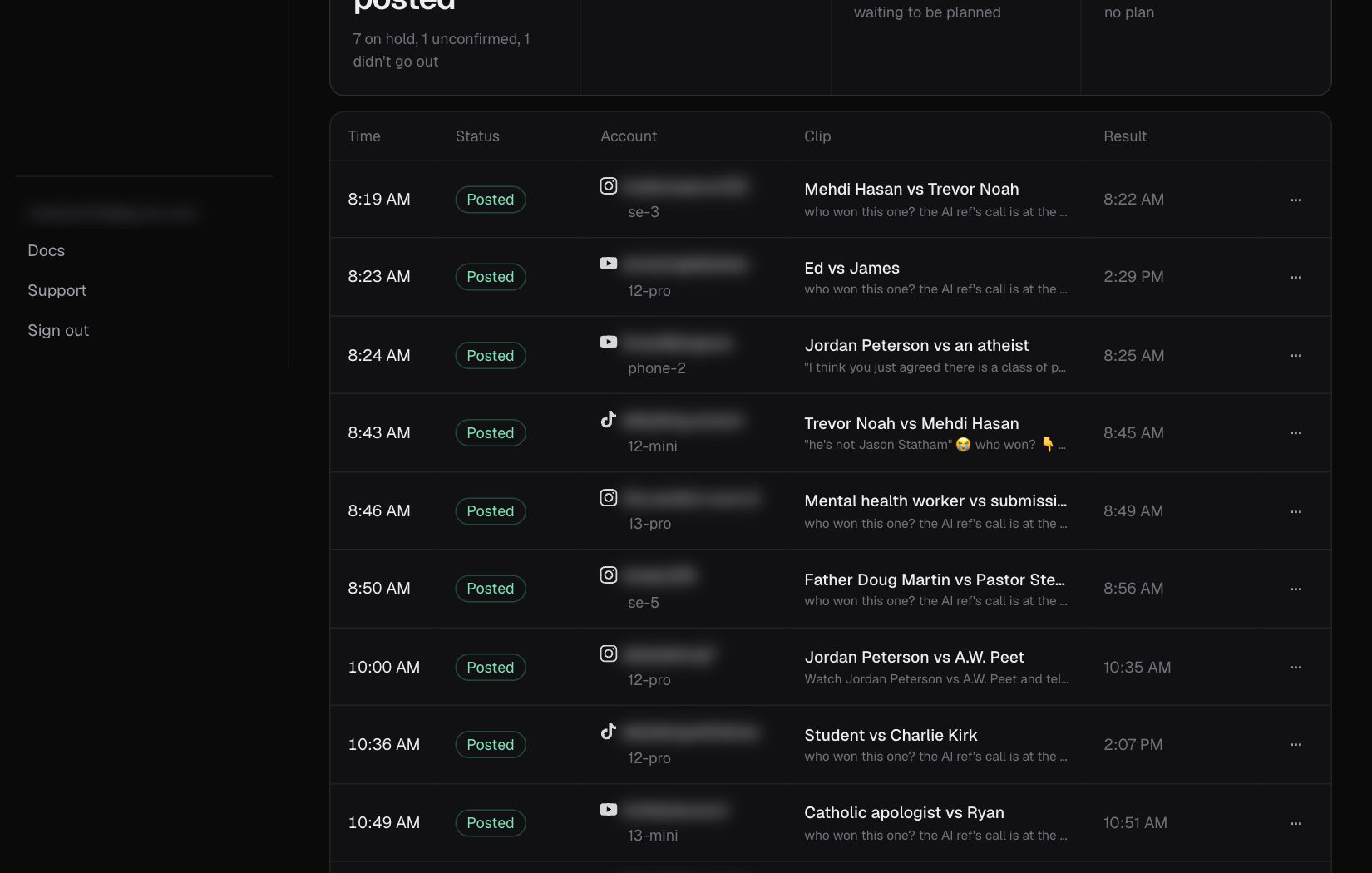
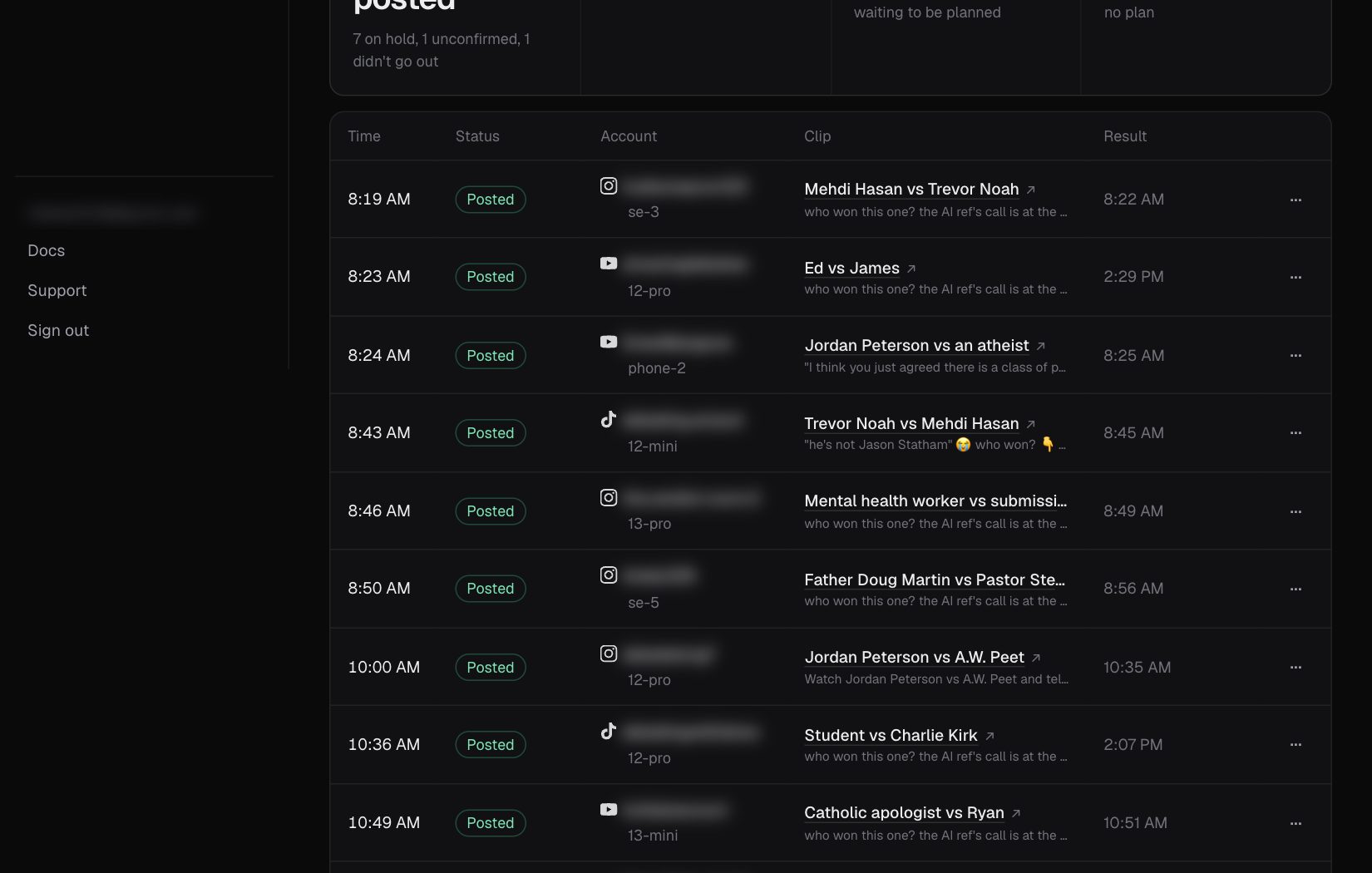
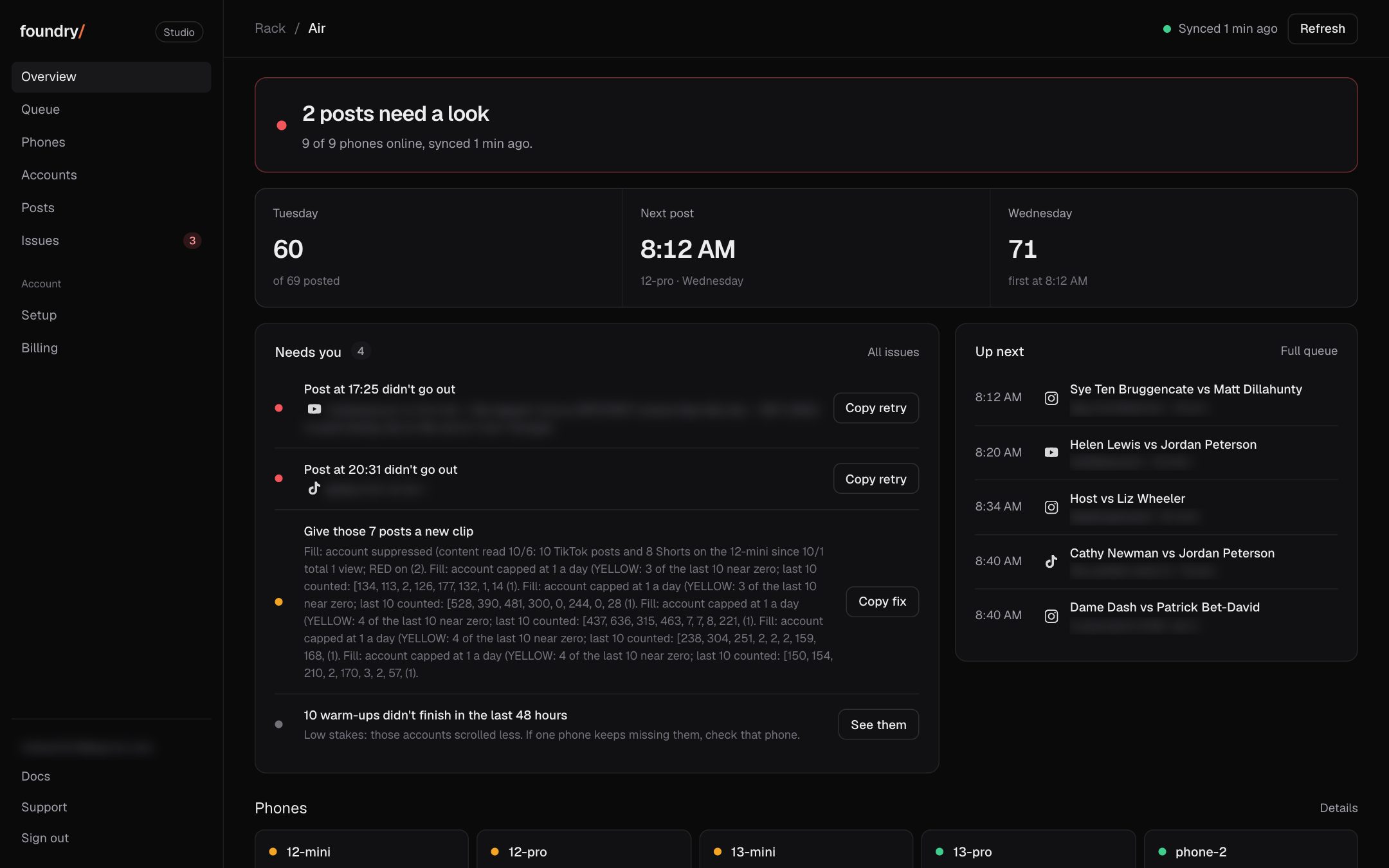
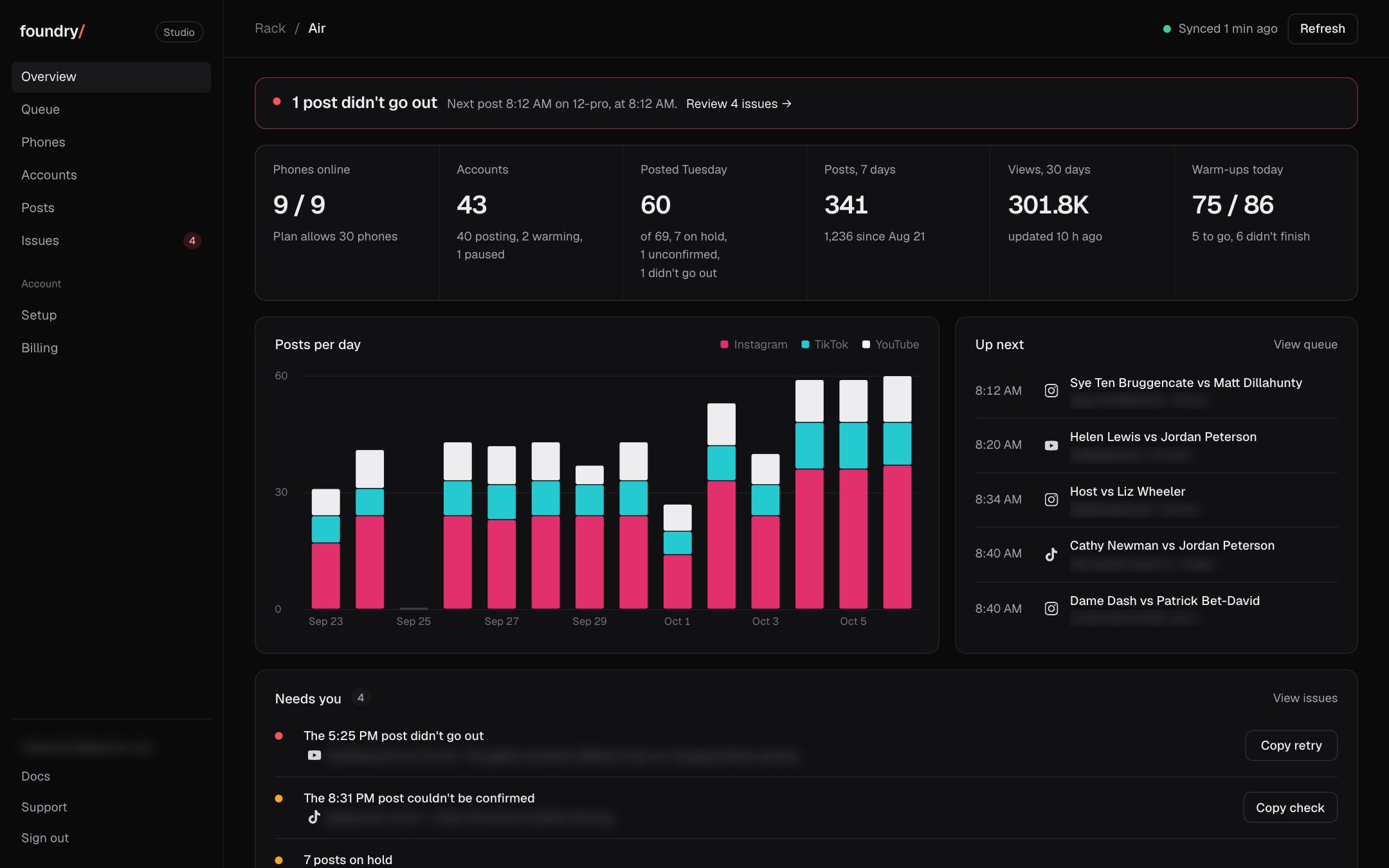
Every change to Foundry you can see since Sep 28, newest first: 22 so far. Each has the same screen before and after, taken on our own rack with handles blurred, and says where to click. A change that cannot be shown is not on this list.
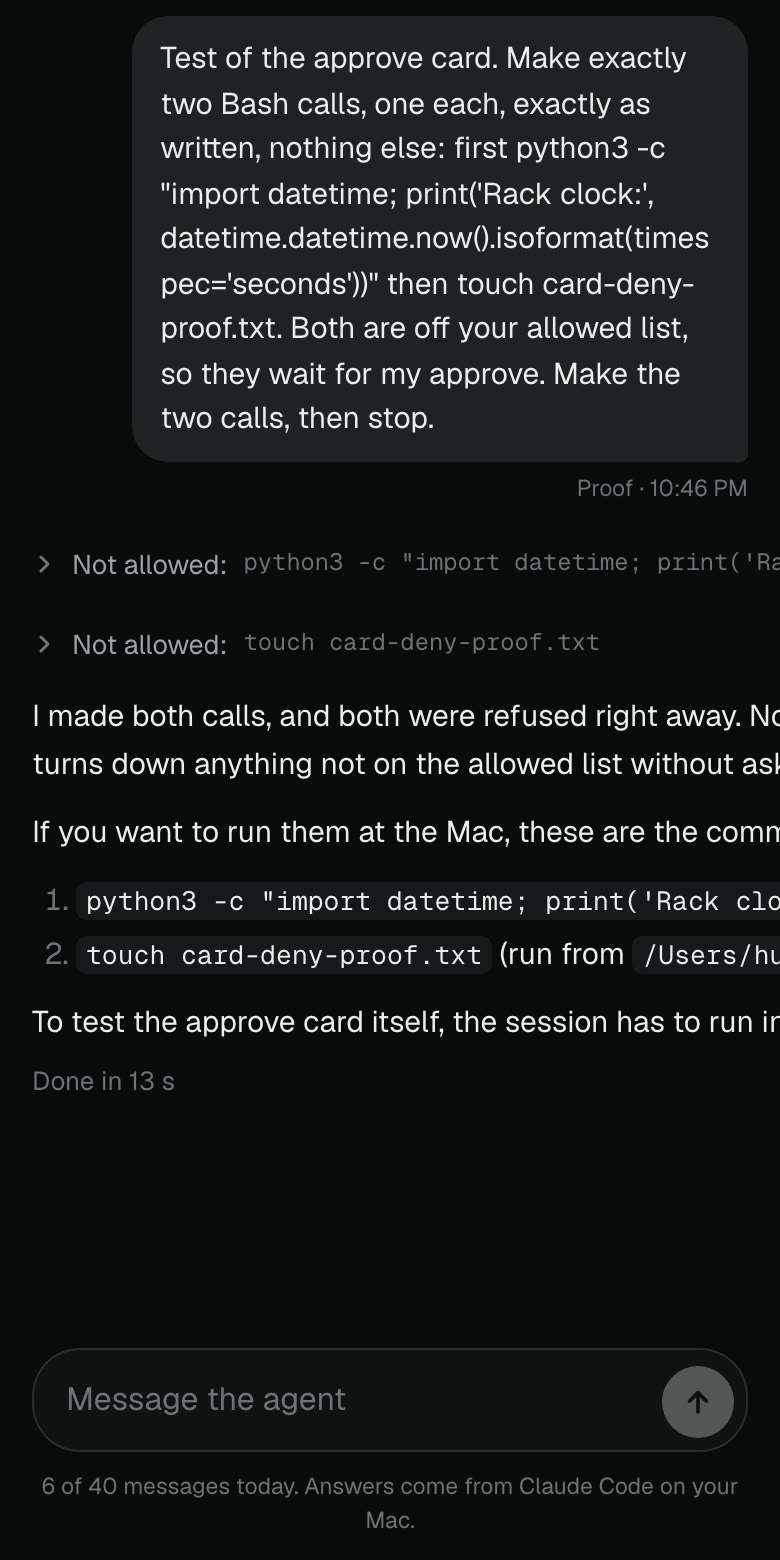
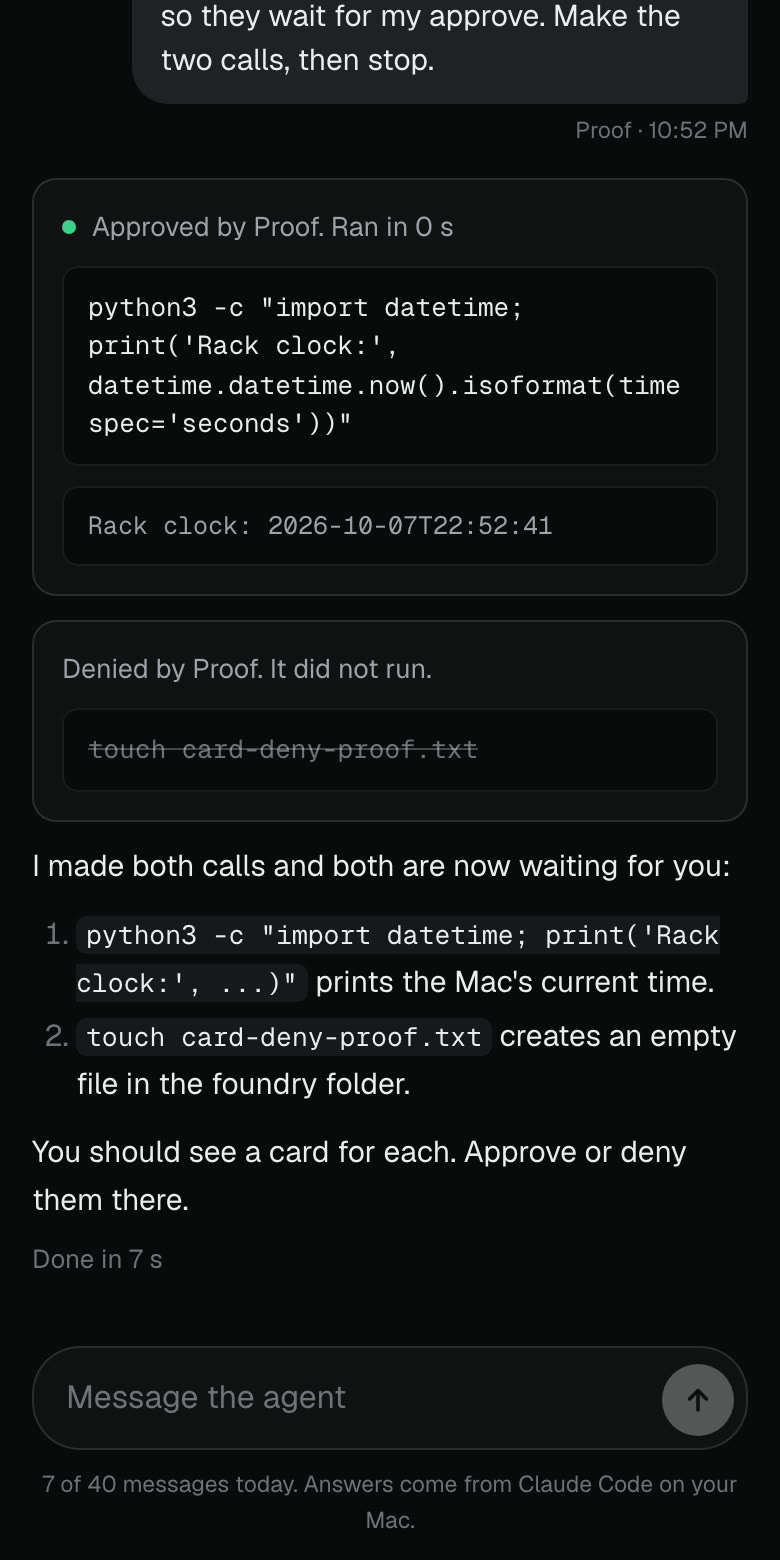
Agent: approve or deny a command right in the chat
When the agent needs a command outside its allowed list, it used to be refused with nothing you could do from the page. Now it shows as a card with the exact command and two buttons. Approve asks for your passkey, then the Mac runs that exact command once and its output prints on the card. Deny drops it and the card says it did not run. A card stays open 30 minutes.
Where to click Dashboard sidebar, Agent, ask for something outside the list. Open it
BeforeAfter
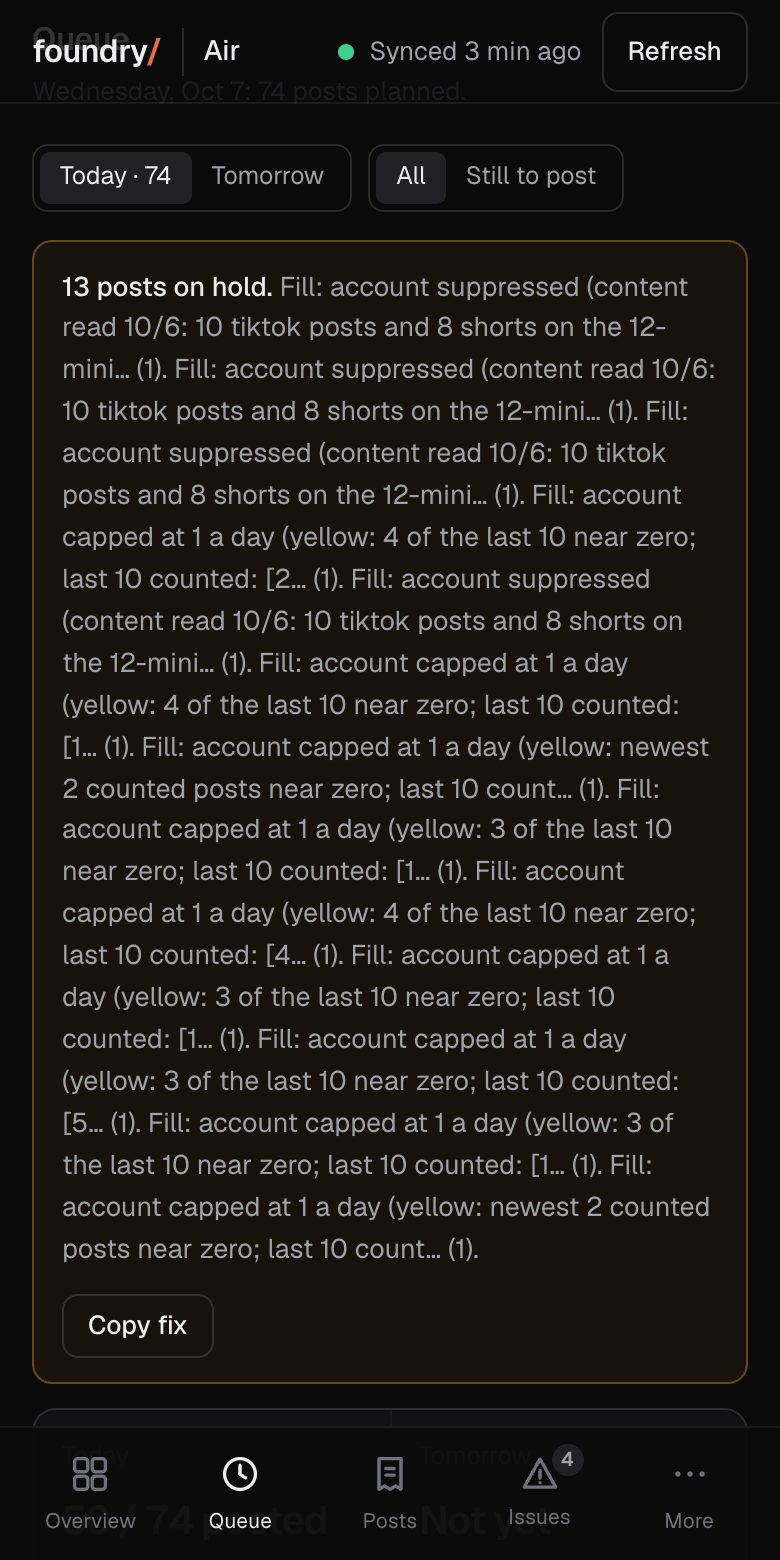
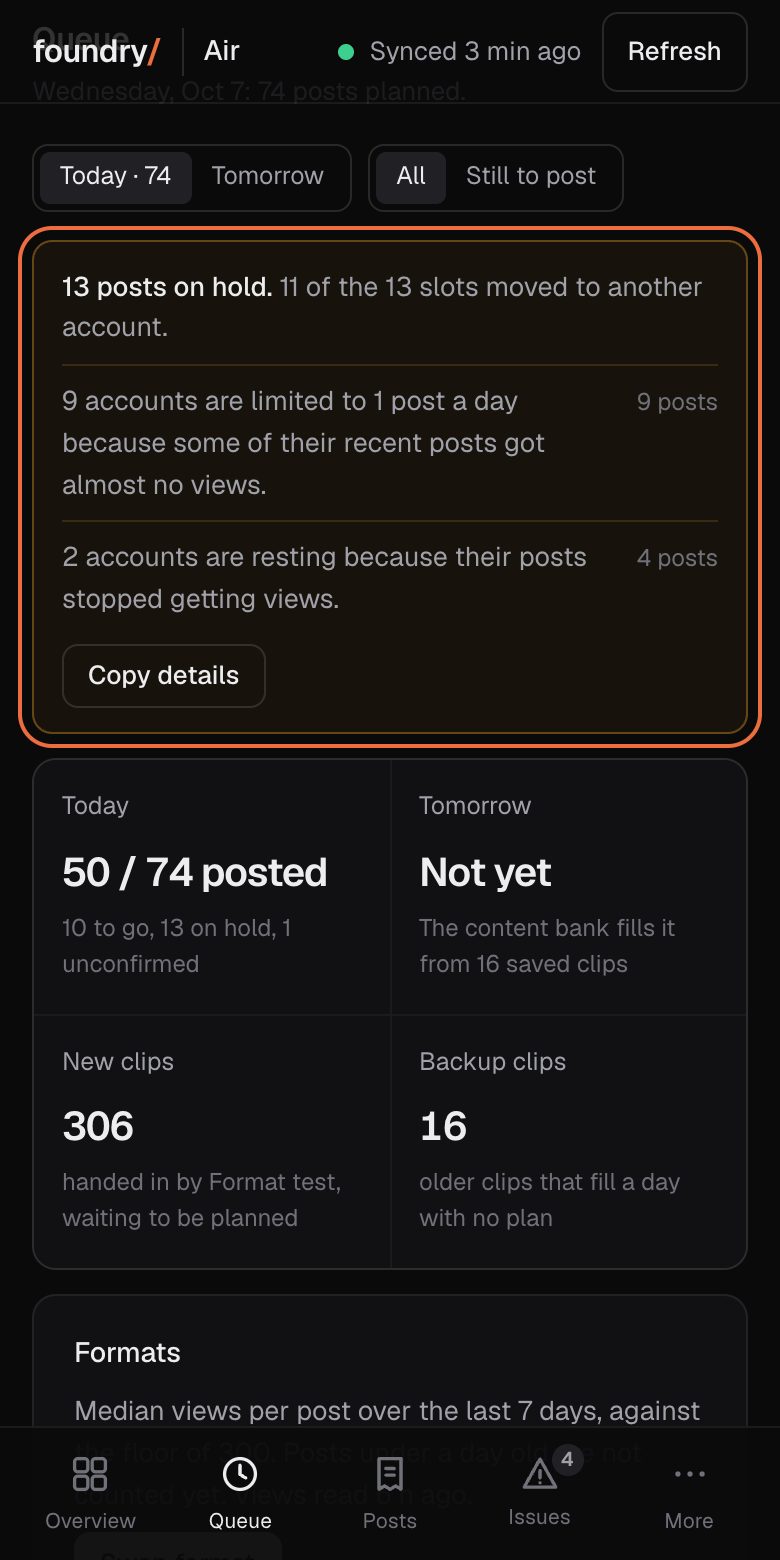
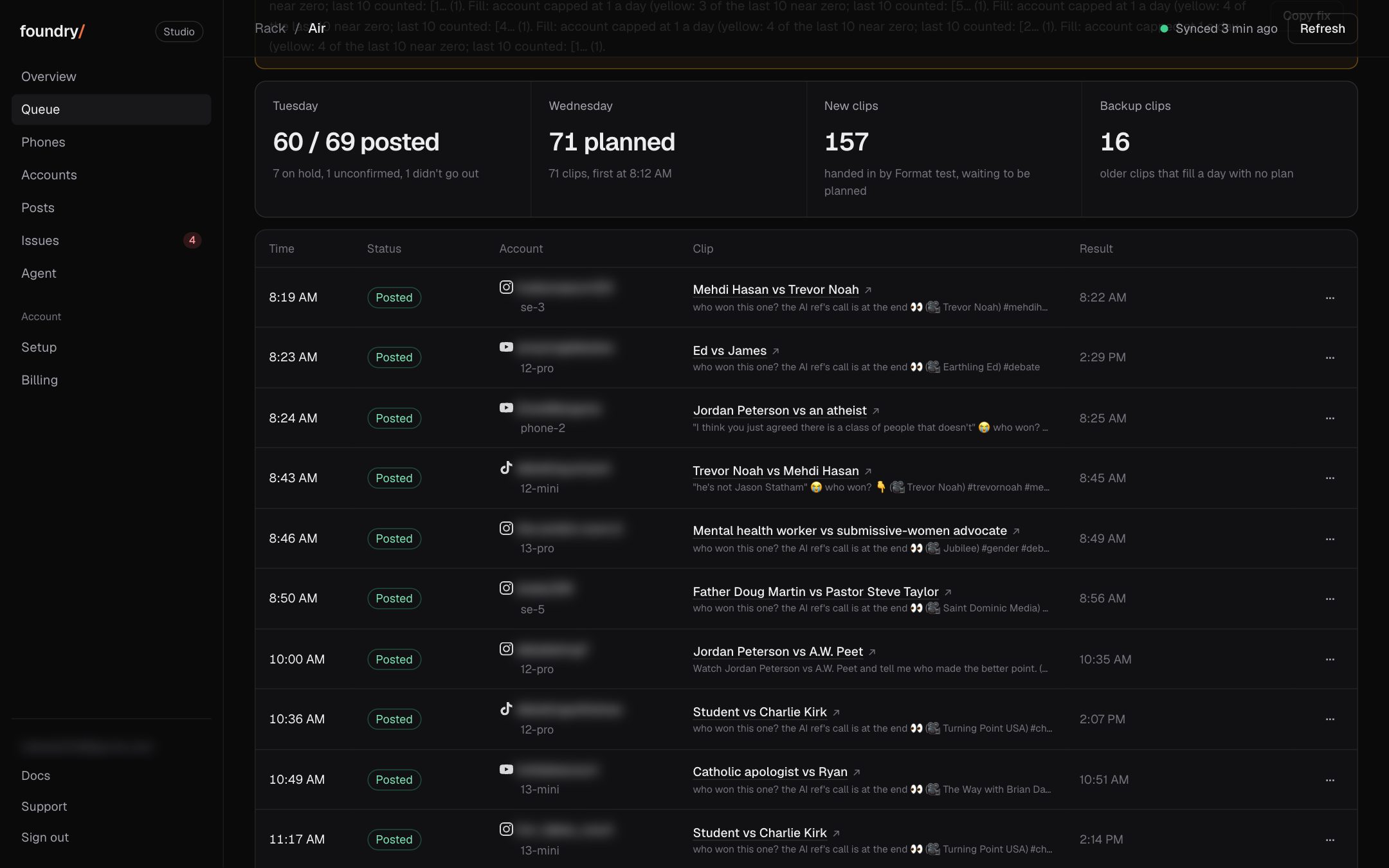
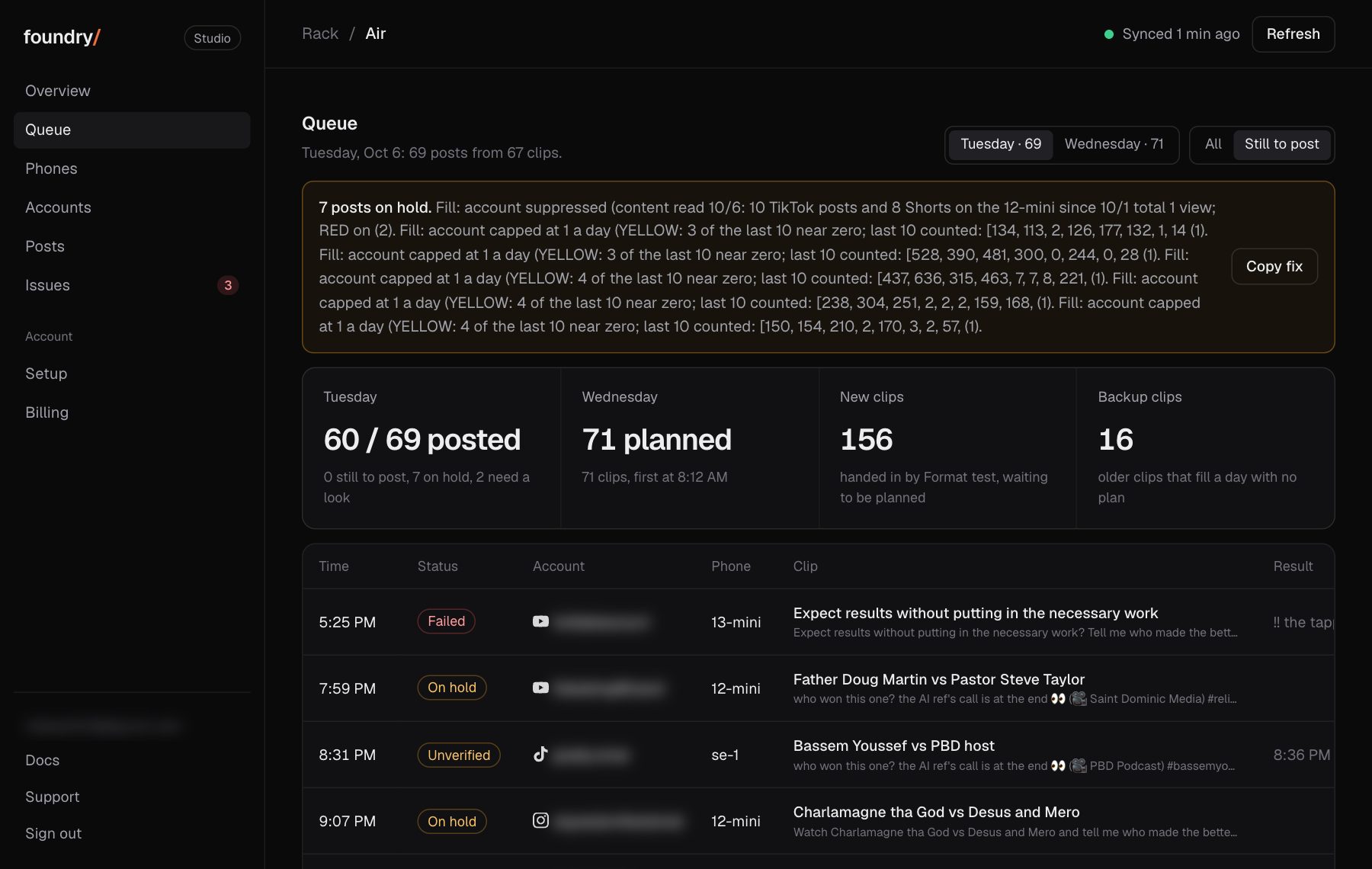
On hold now says why, in plain words
The amber box on Queue, Overview and Issues used to print the rack's own log. It now says one short sentence per cause with a count, and each held post says its own reason and the time its slot moved to another account.
Where to click Dashboard, Queue, the amber box at the top. Open it
BeforeAfter
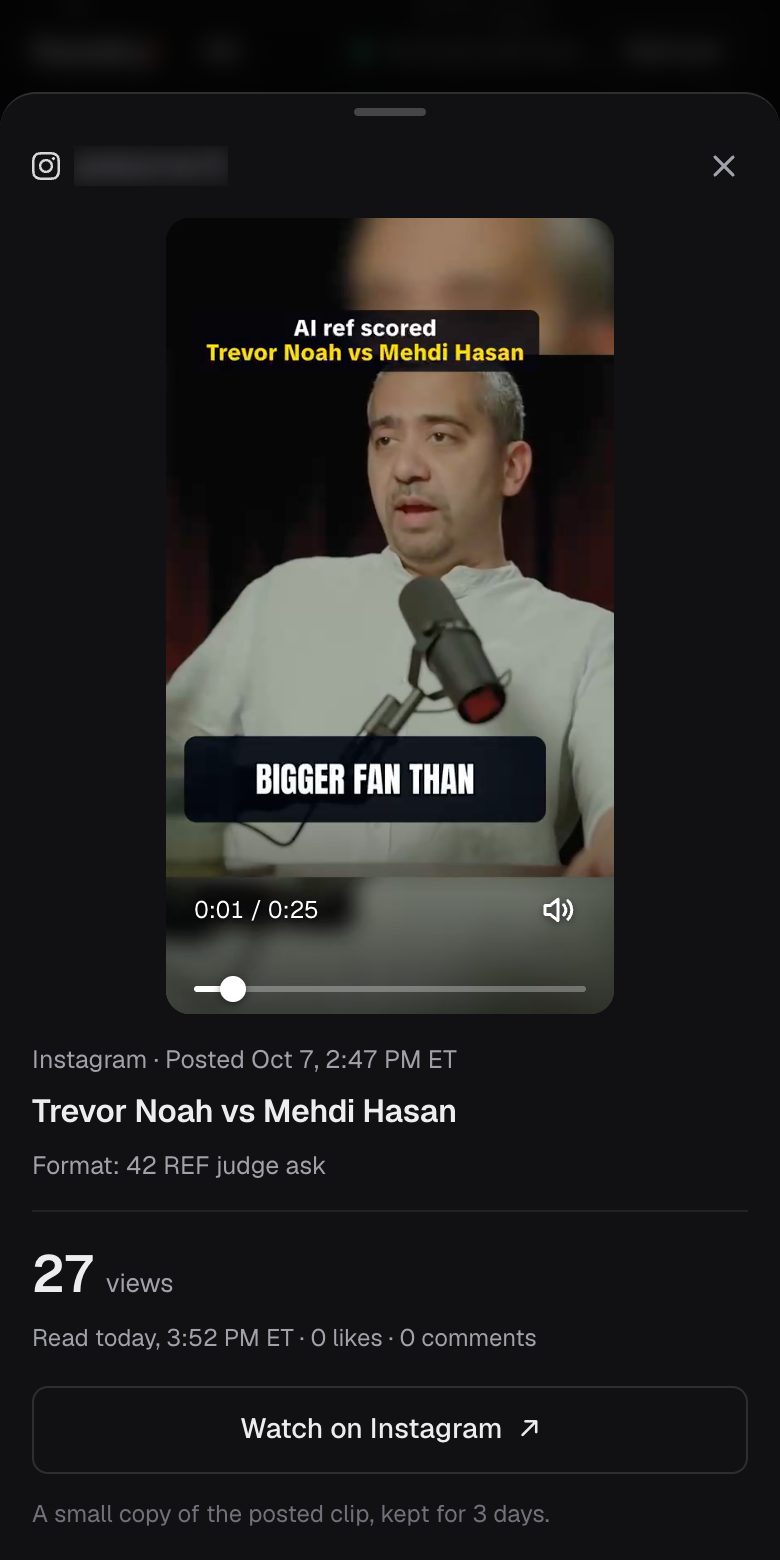
Tap Play: the clip plays right there, over the page
A post with a clip now has Play beside Watch. It opens the clip over the page, with sound, instead of a new tab: the video upright, its time and position on the picture, then the post's views with the time they were read and one button to the live post. A tap on the picture pauses it. Back, Close or a pull down returns to the same row. A topic in Queue, Up next and Issues plays its clip the same way. Foundry keeps a clip for 3 days, so older posts keep Watch only.
Where to click Dashboard, Accounts, tap any row, then Play on a post. Open it
BeforeAfter
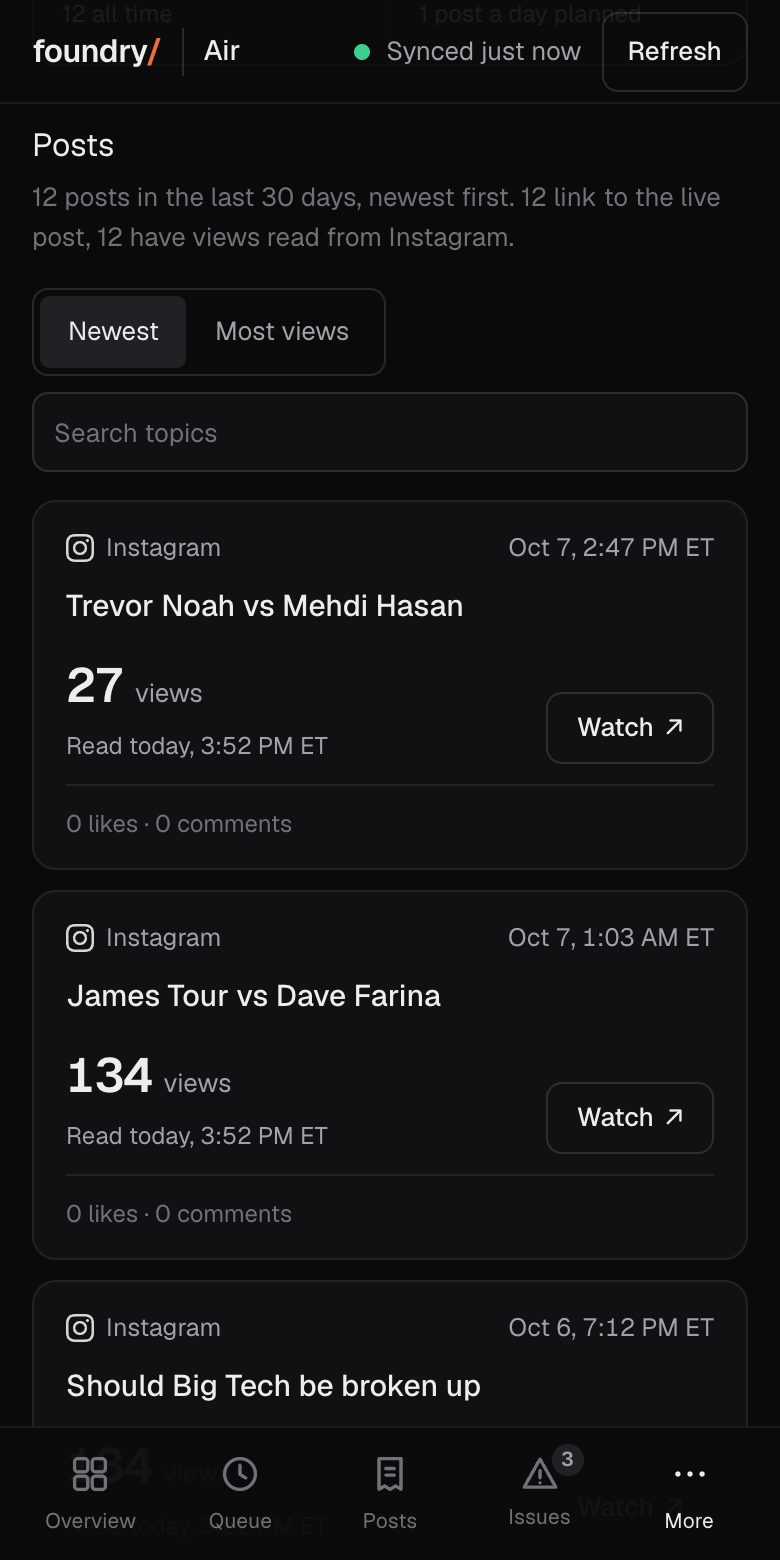
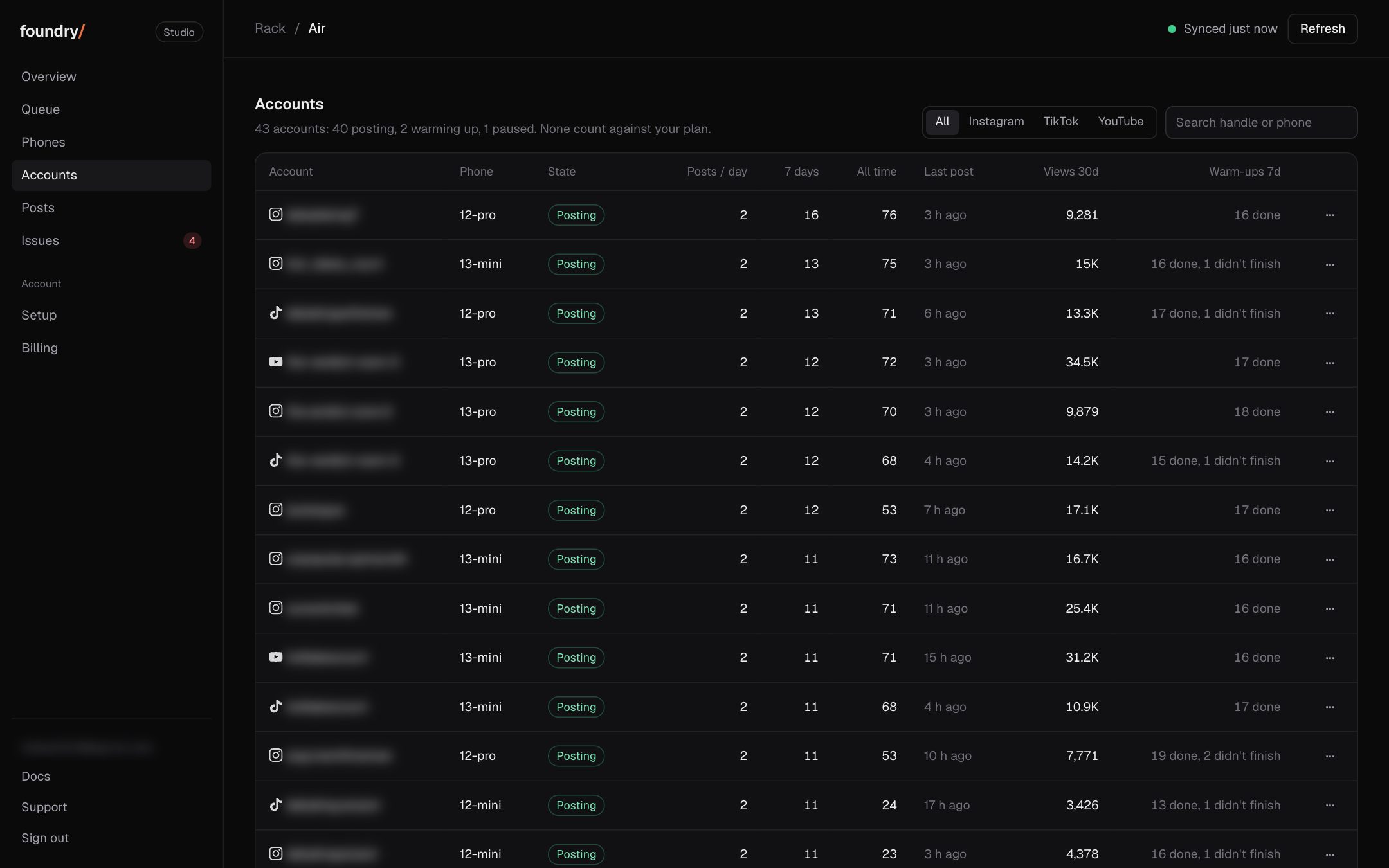
Tap an account: every post with its views, when they were read, and a link to the live post
Any row on Accounts now opens that account. Its posts are listed newest first, each with its platform, the time it went out on the rack's clock (Eastern for ours), the views with the time they were read from the platform, and Watch, which opens the live post. A count or a link that was not read says unknown. On a phone the posts are cards right under the numbers.
Where to click Dashboard, Accounts, tap any row. Open it
BeforeAfter
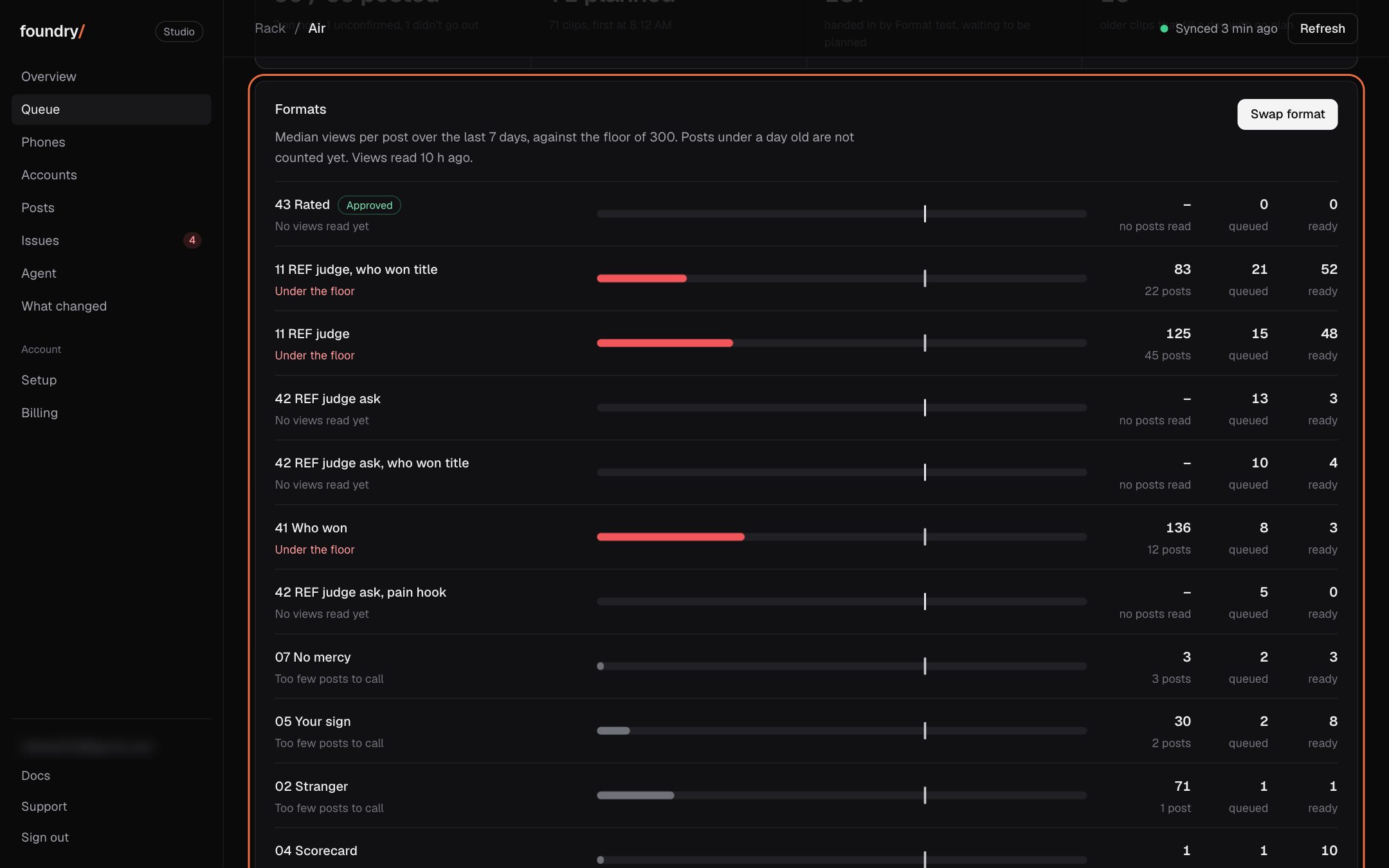
Swap format: one button moves the queue off formats under 300 views
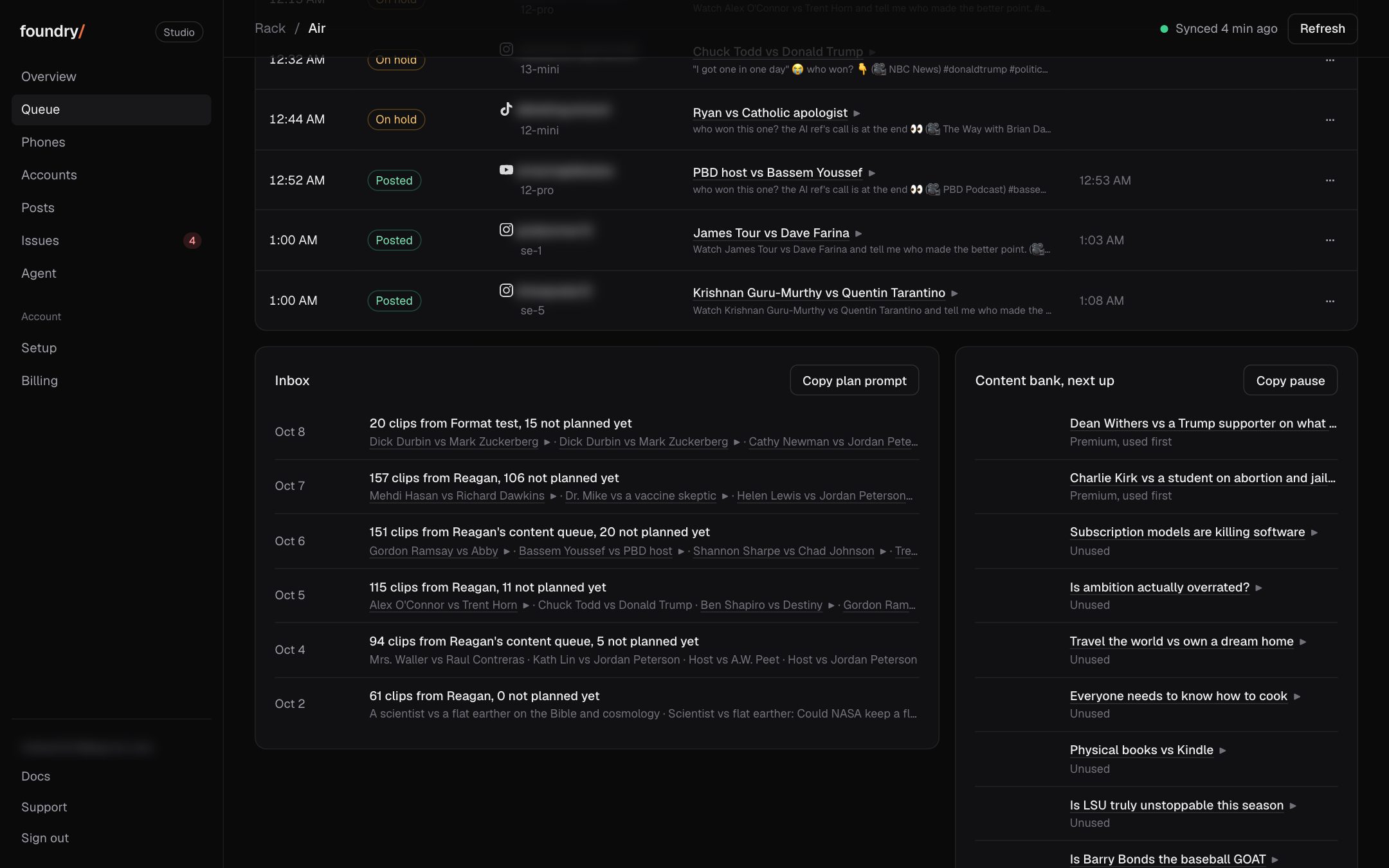
The Queue tab now has a Formats card. Each format shows its median views per post over the last 7 days against the floor of 300, how many posts are queued on it and how many finished pieces are ready. Swap format gives every queued post of a format under the floor to a piece of the approved format, in the same slot.
Where to click Dashboard, Queue, the Formats card, then Swap format. Open it
BeforeAfter
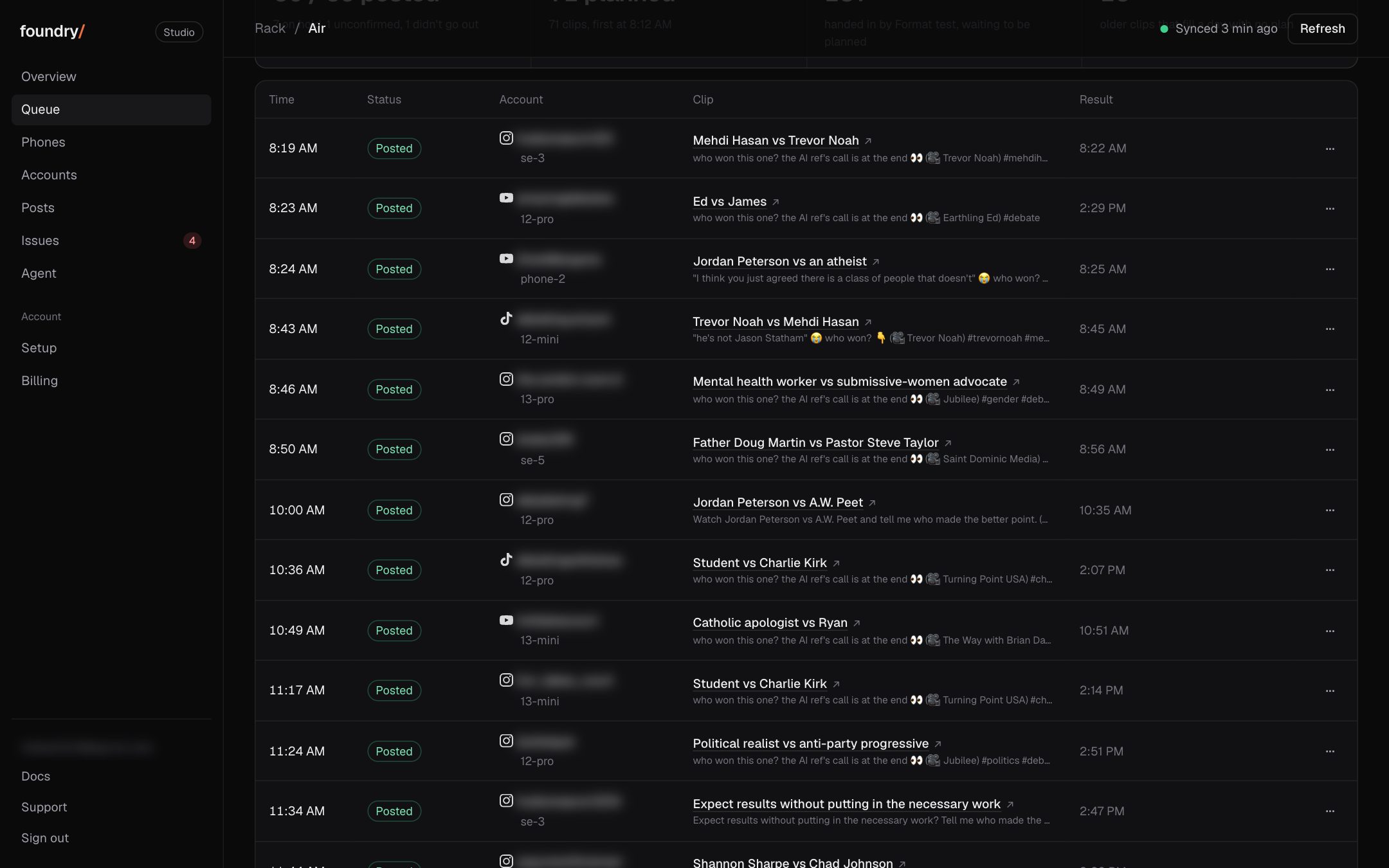
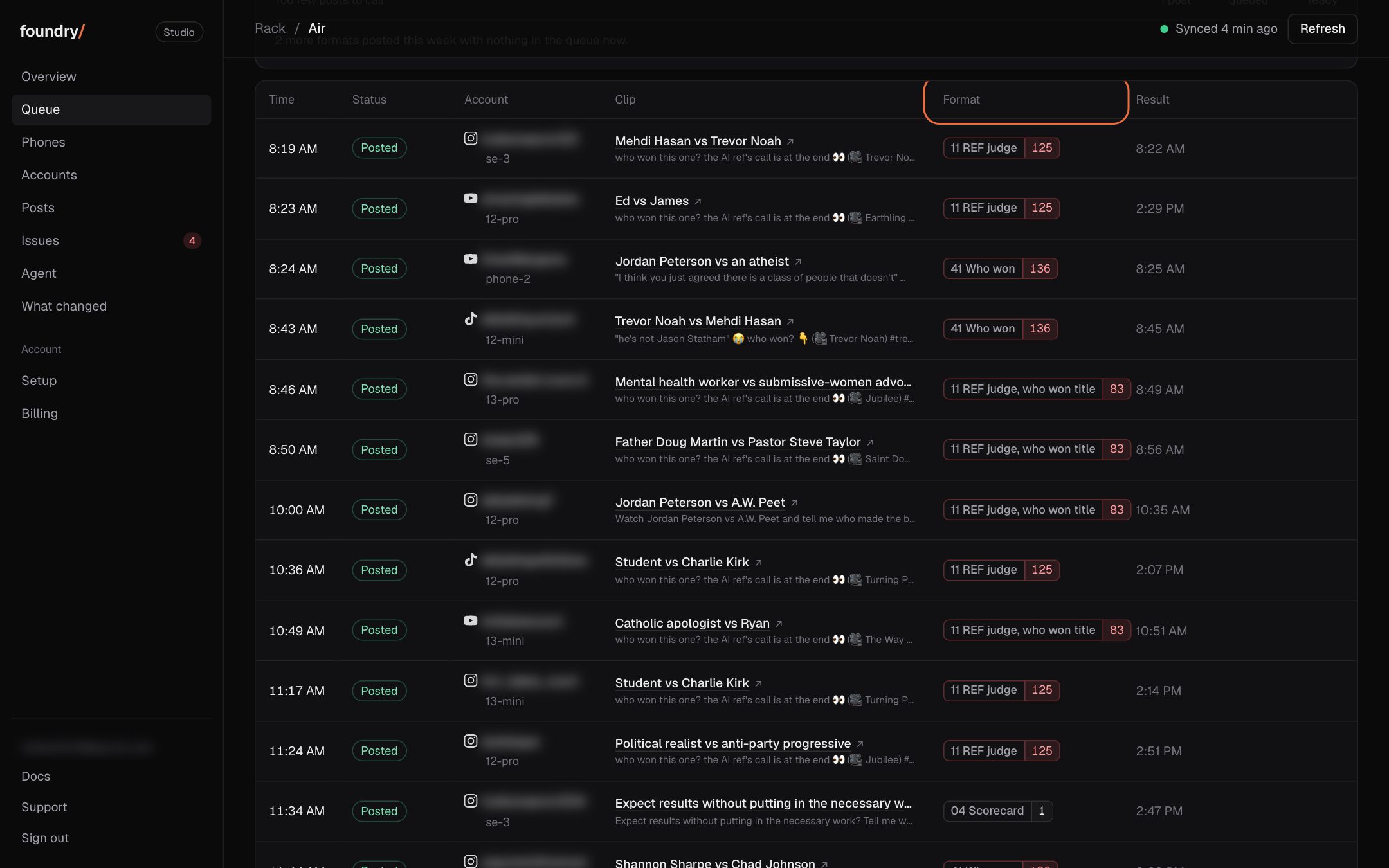
Every queued post shows its format and that format's median
Each row in the queue carries its format and the format's 7 day median views: red under the floor, green over it. The Format column sorts the day by it.
Where to click Dashboard, Queue, the Format column. Open it
BeforeAfter
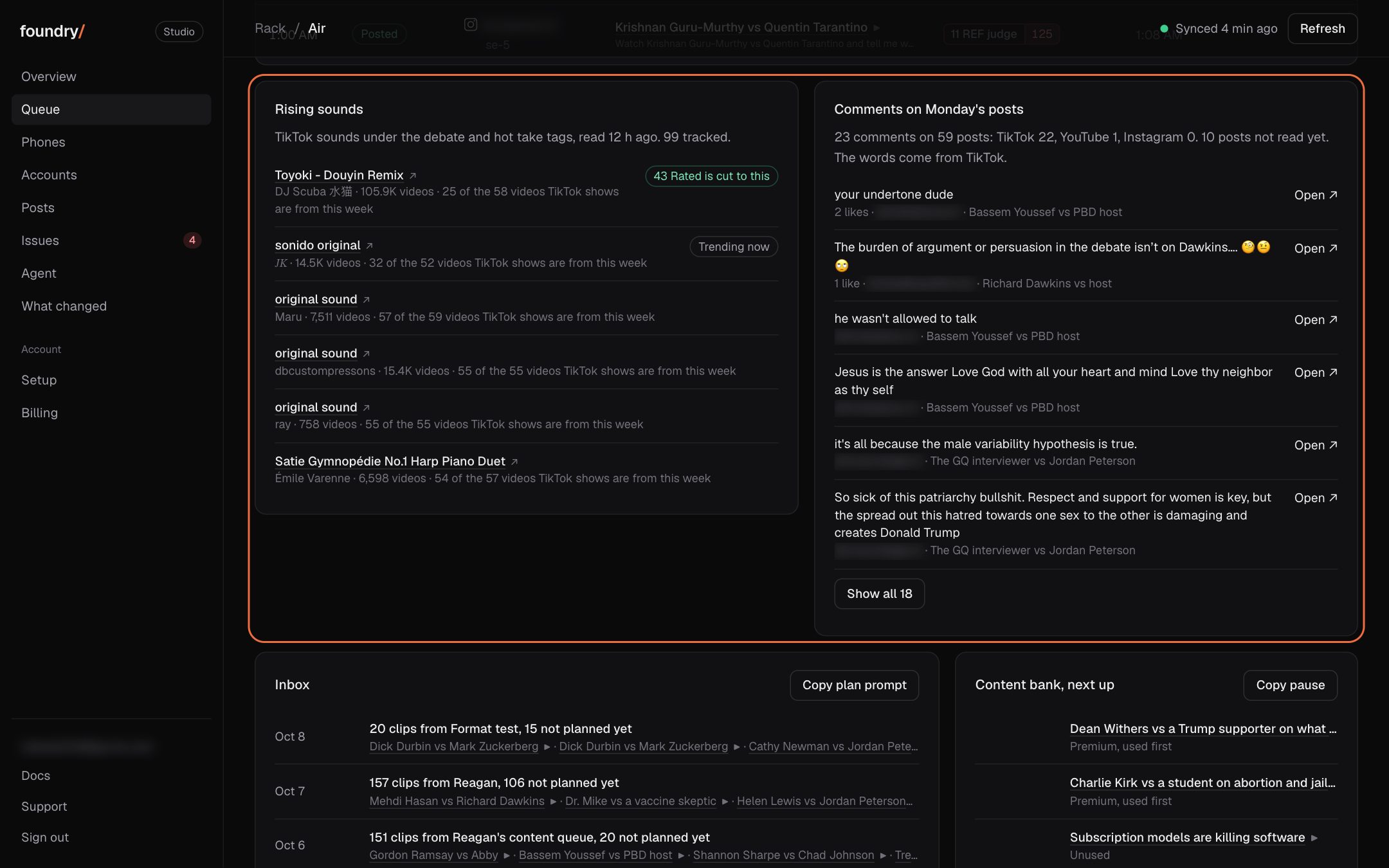
Rising sounds and yesterday's comments, on the Queue tab
Two cards from our own scrapers sit under the day's posts: the TikTok sounds rising under the debate and hot take tags (the approved format's own sound first), and what people wrote under the last finished day's posts, each with a link to the post.
Where to click Dashboard, Queue, under the list of posts. Open it
BeforeAfter
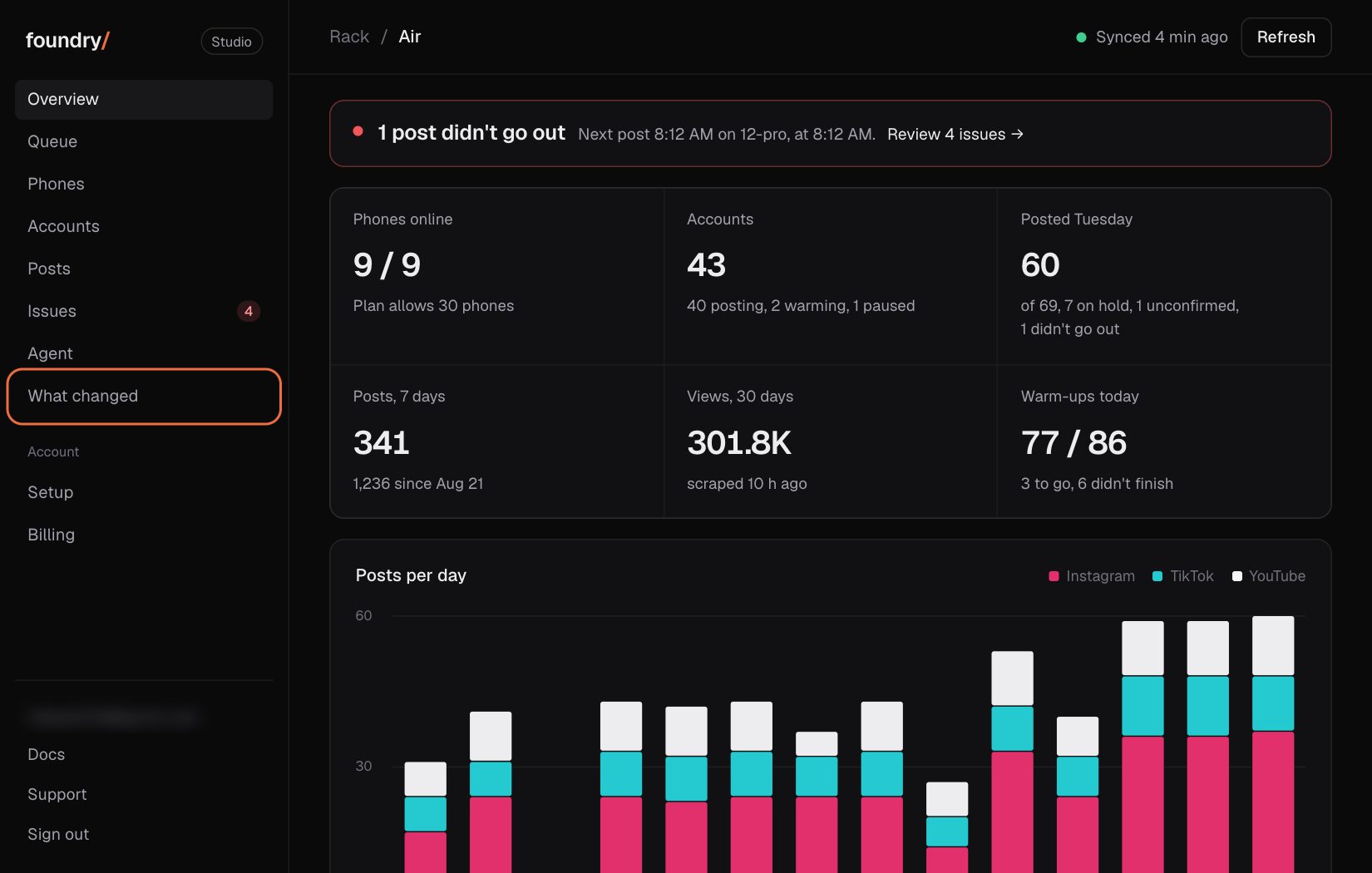
What changed: this page
Every change you can see, newest first, each with a before and after picture and where to click. A change that cannot be shown is not on the list.
Where to click Dashboard sidebar, What changed (on a phone: More, then What changed). Open it
BeforeAfter
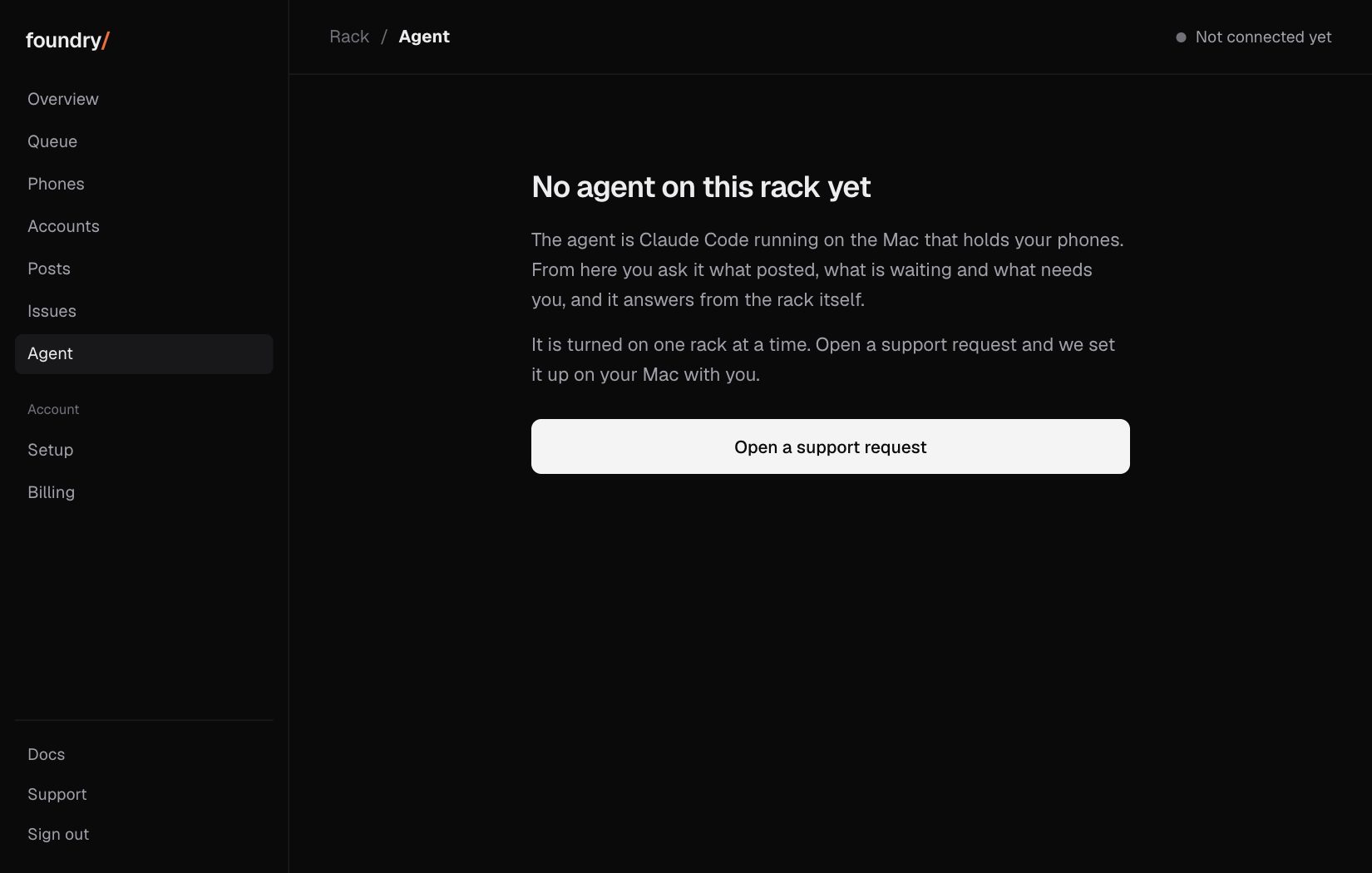
Agent: message the agent on the rack's Mac from the browser
A new Agent page in the dashboard sends a message to Claude Code on the Mac the phones plug into and shows its answer and each tool it ran. It needs a passkey on top of the sign in. It answers once a runner is installed on that Mac; until then the page says the rack has no agent.
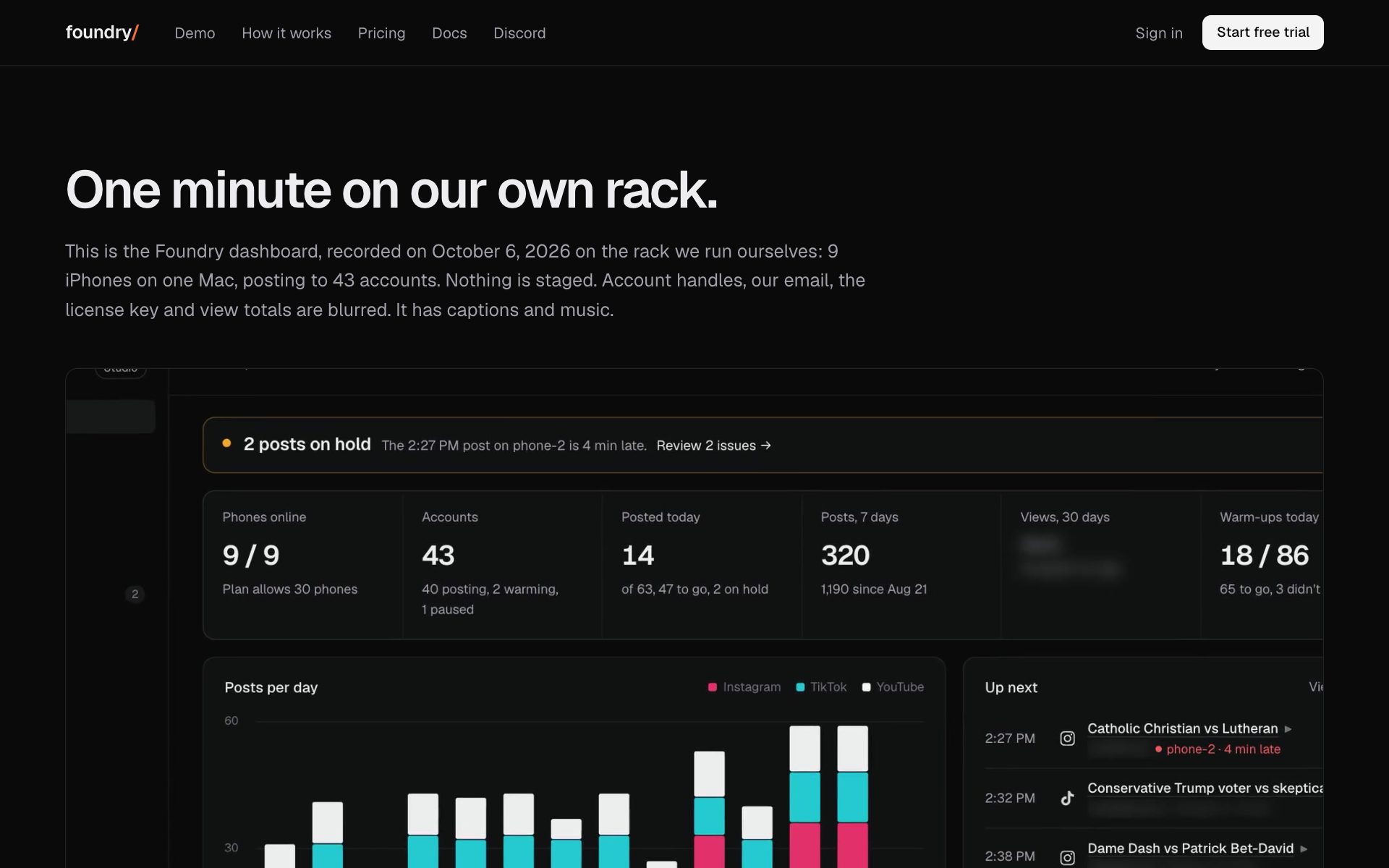
Demo: one minute on our own rack, with captions and music
A public page plays a one minute walkthrough of the dashboard recorded on our own rack, with chapter buttons that jump the video. Handles, the email, the license key and view totals are blurred.
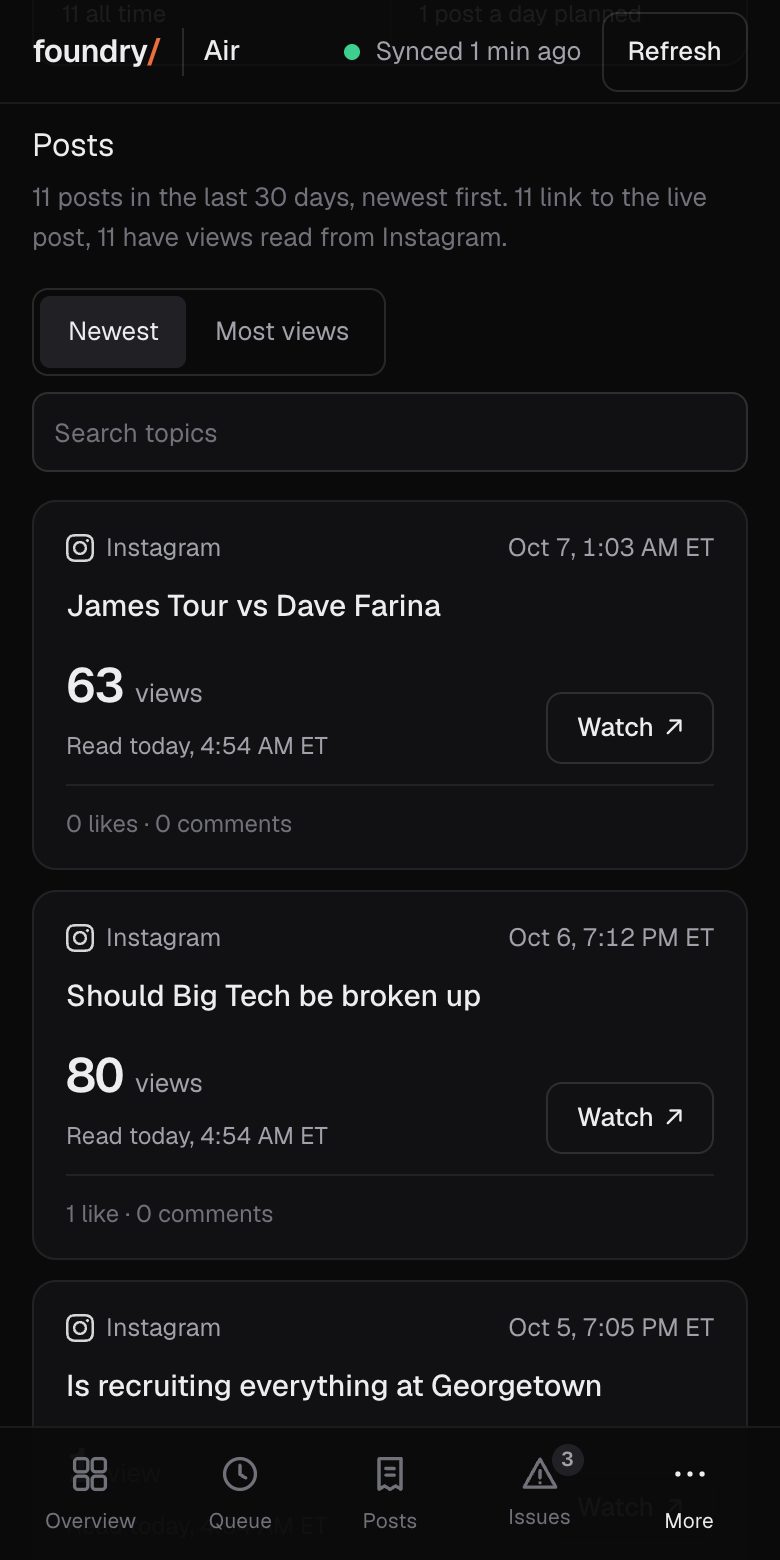
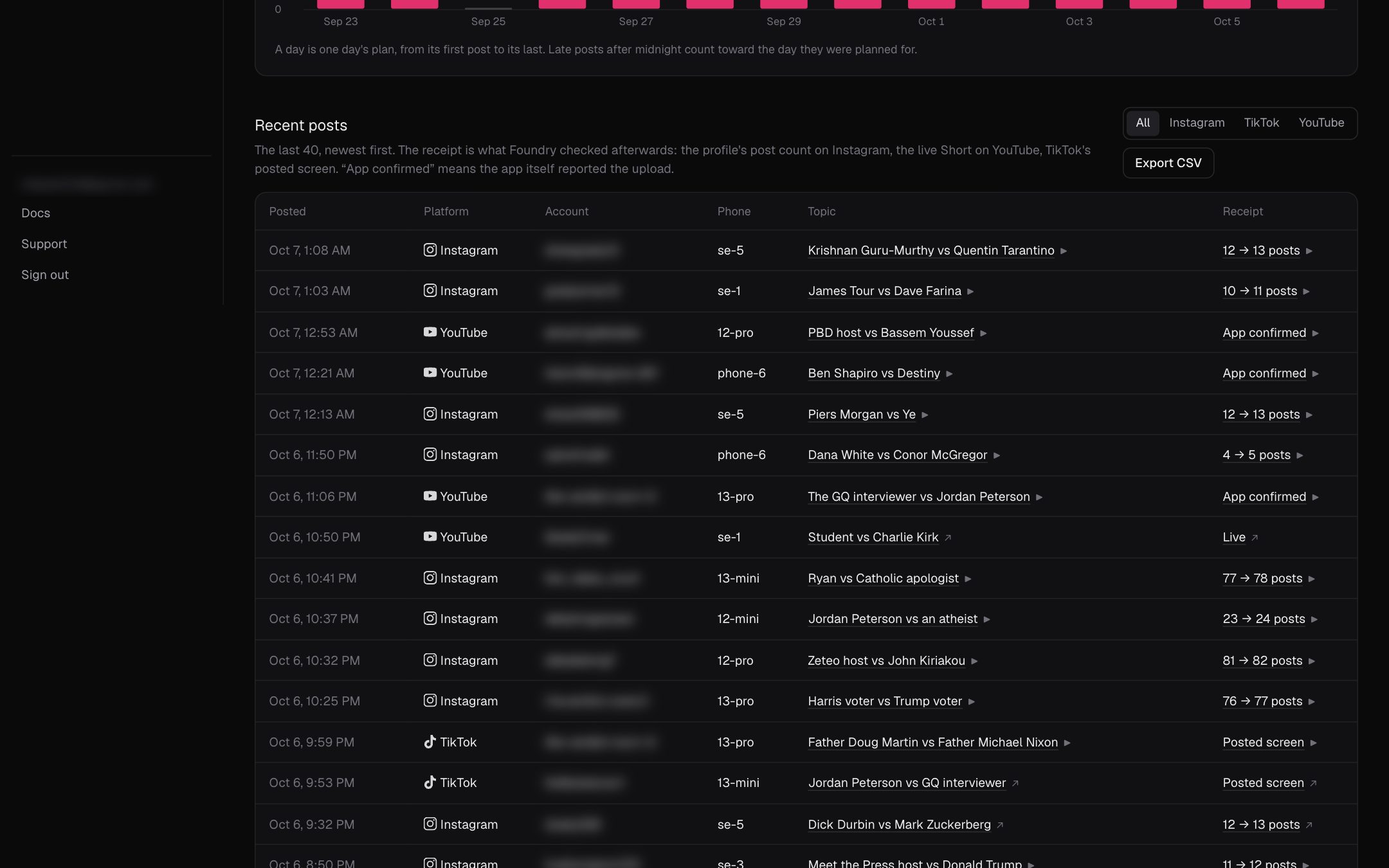
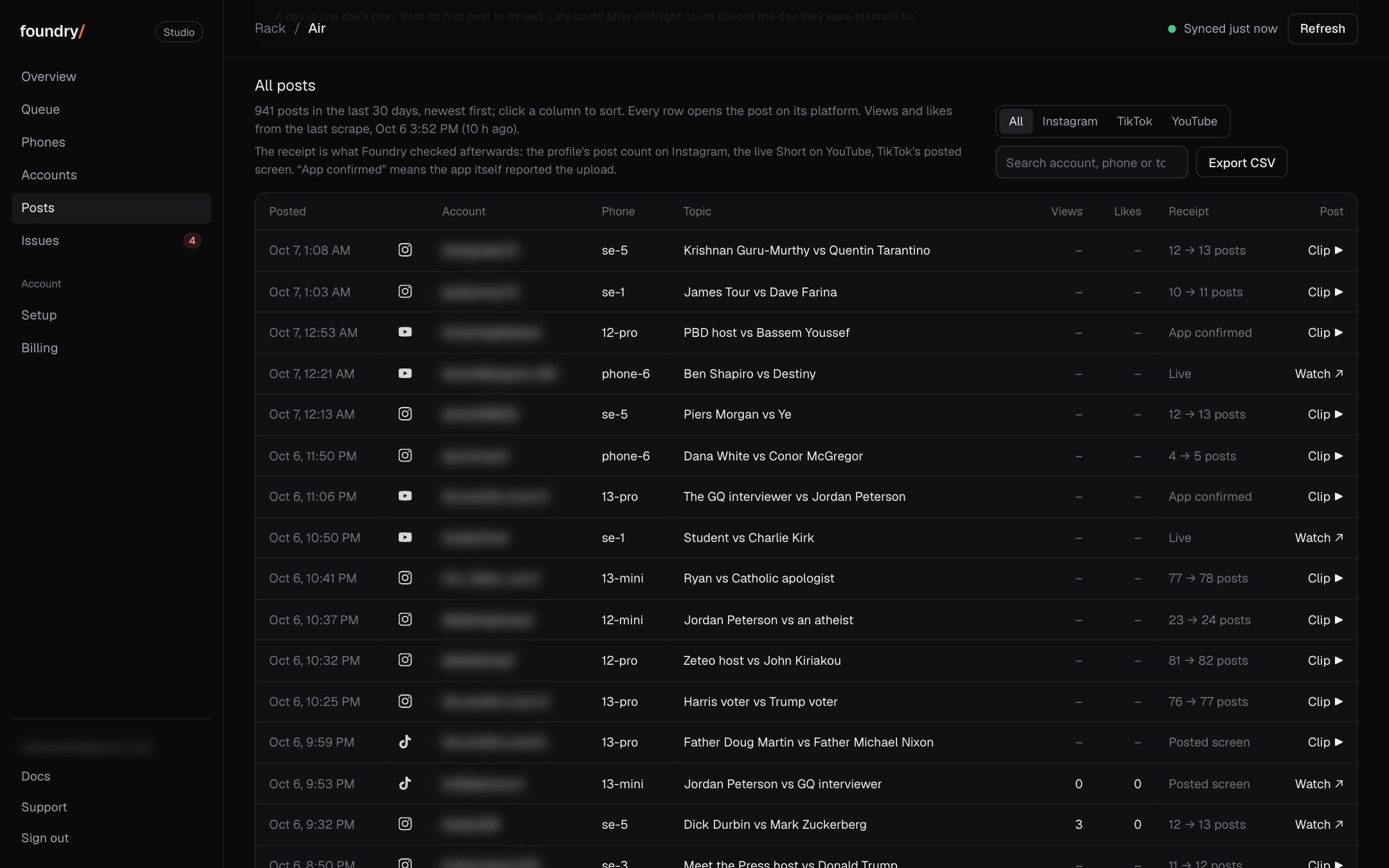
Posts: every post with views, likes, comments and a link
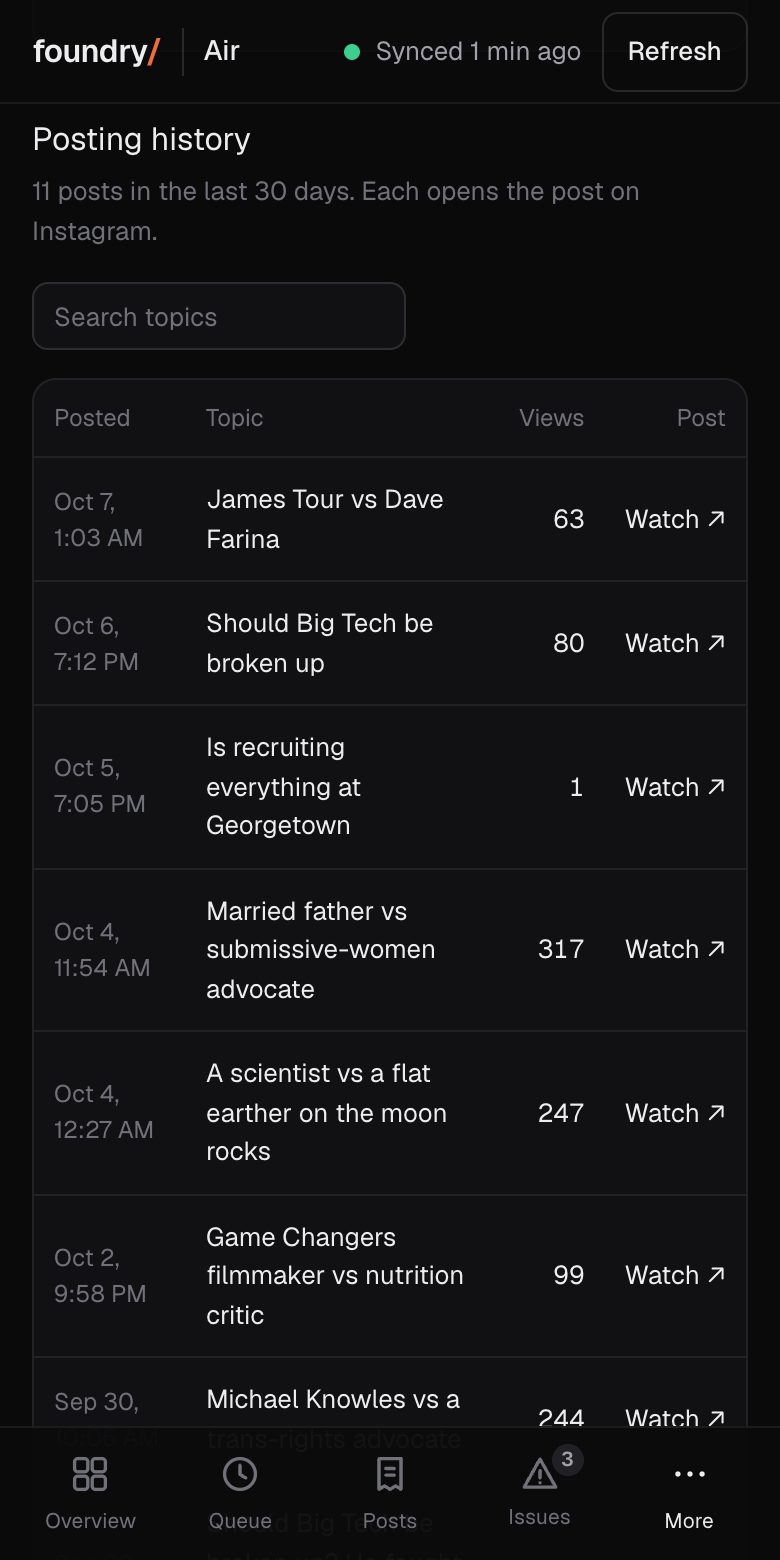
The Posts tab lists every post of the last 30 days with its views, likes and comments from the scrape, a search box, a platform filter and sorting on any column. Each row has one link: Watch for the live post, Clip for the private preview, or the profile.
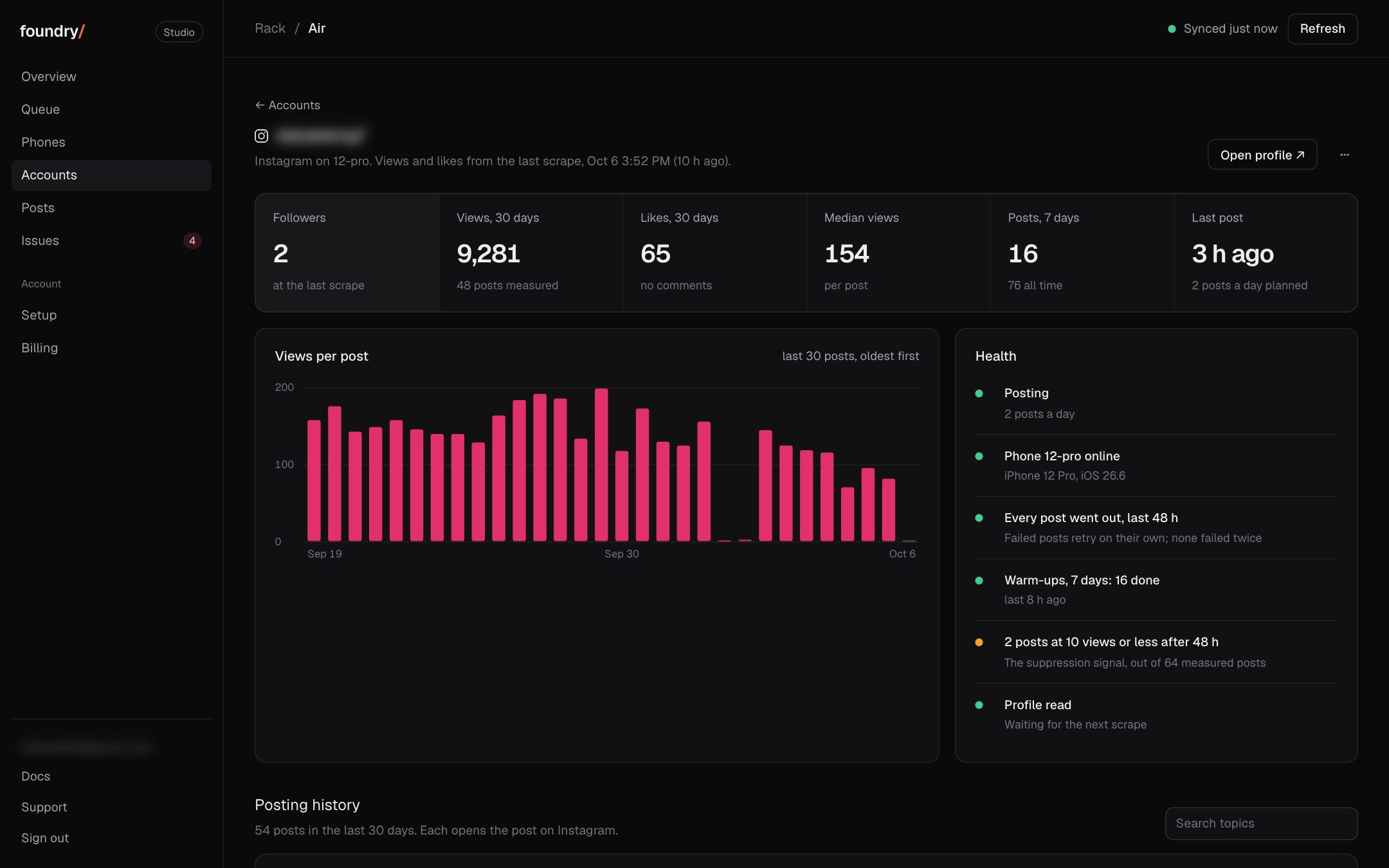
The Accounts tab adds followers, likes and median views, and each account opens to its own page: six numbers, views per post, its health (state, phone, failed posts, warm-ups, posts stuck at 10 views or less) and its full posting history.
Where to click Dashboard, Accounts, then any account. Open it
BeforeAfter
Every row opens its content
A post in the queue, in Up next or in Needs you is now a link: the live post once it is public, else a private preview of the clip itself.
Where to click Dashboard, Queue, the title of any post. Open it
BeforeAfter
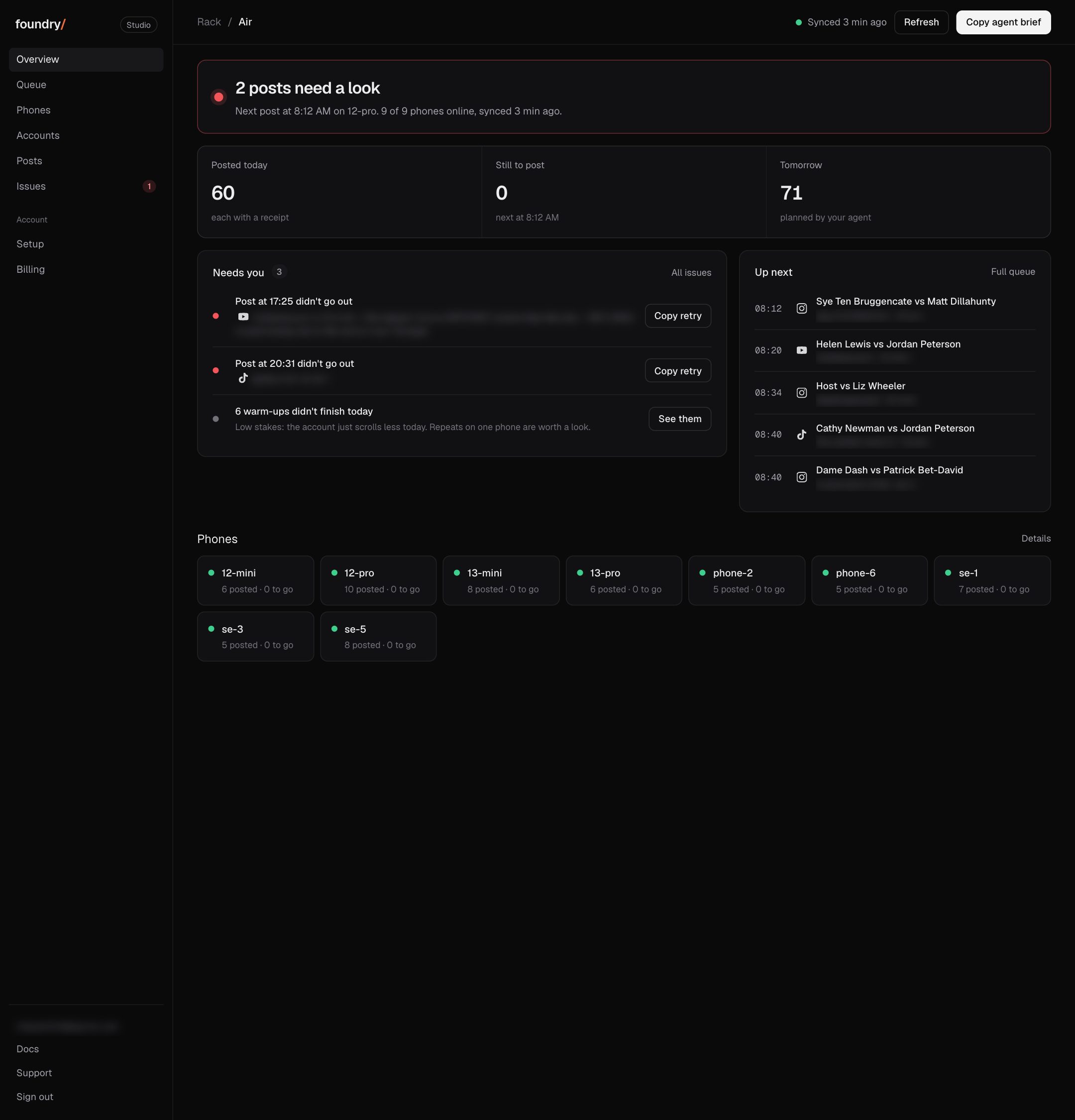
Overview: one line says what is next and what is wrong
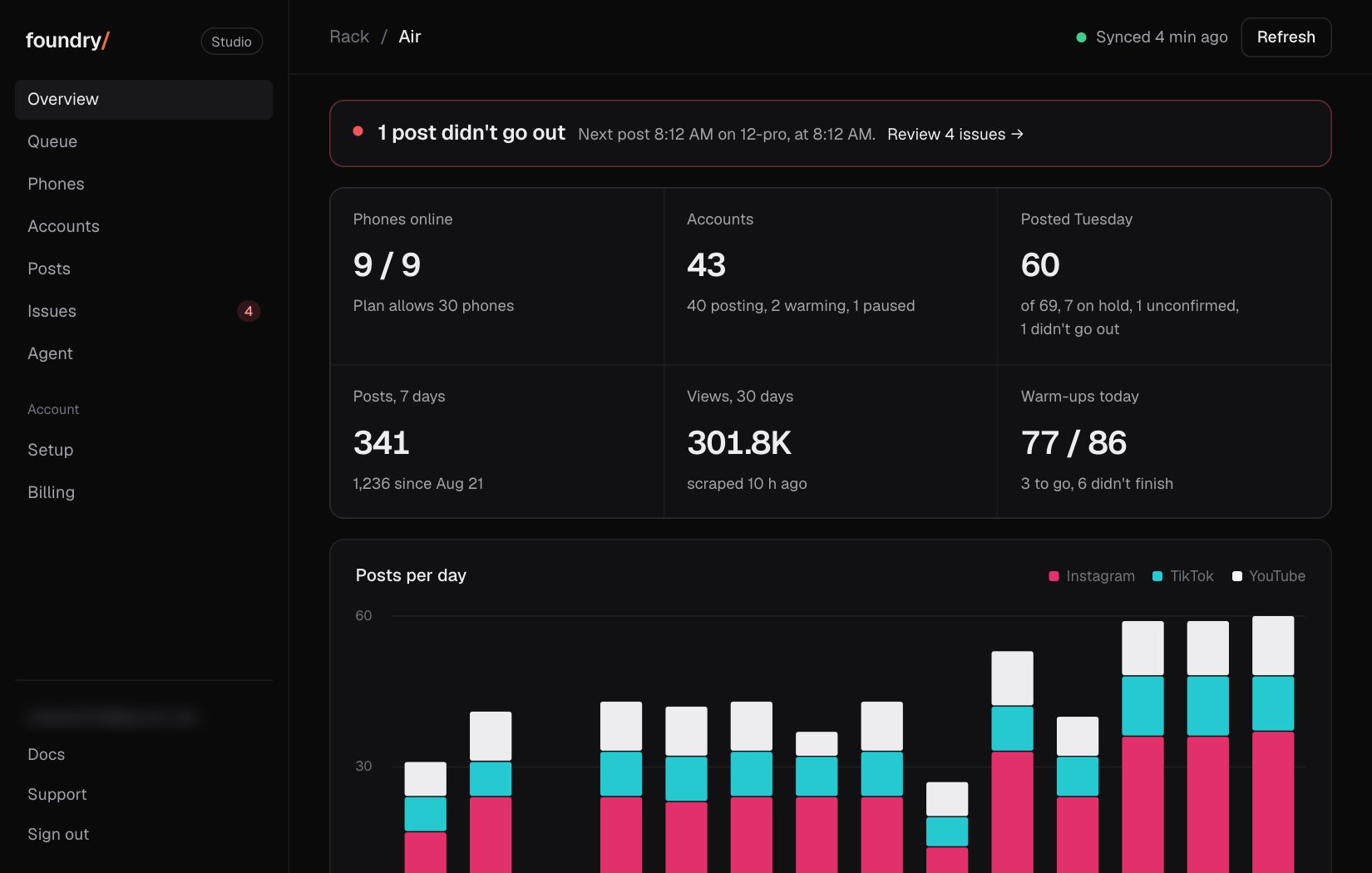
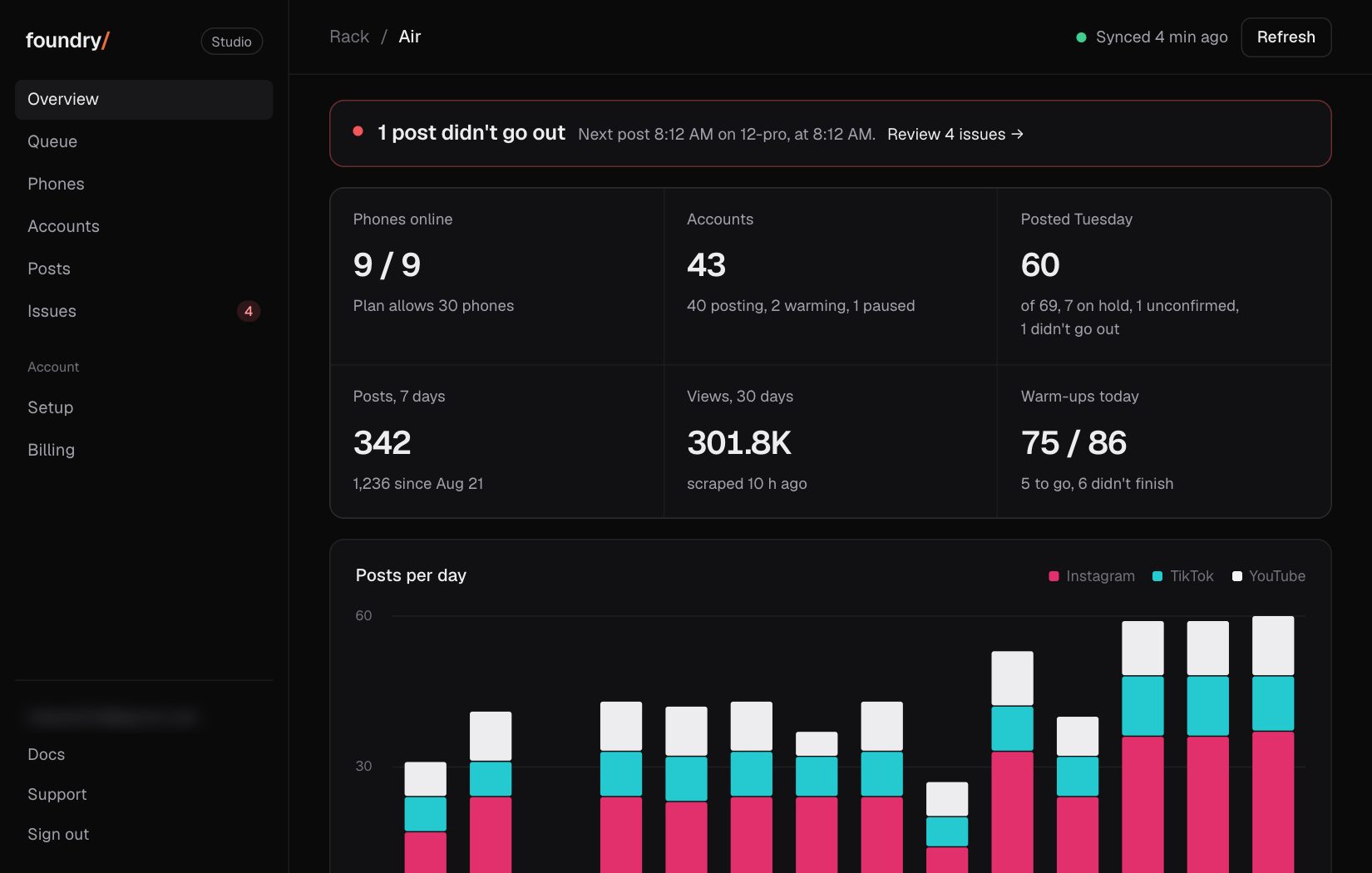
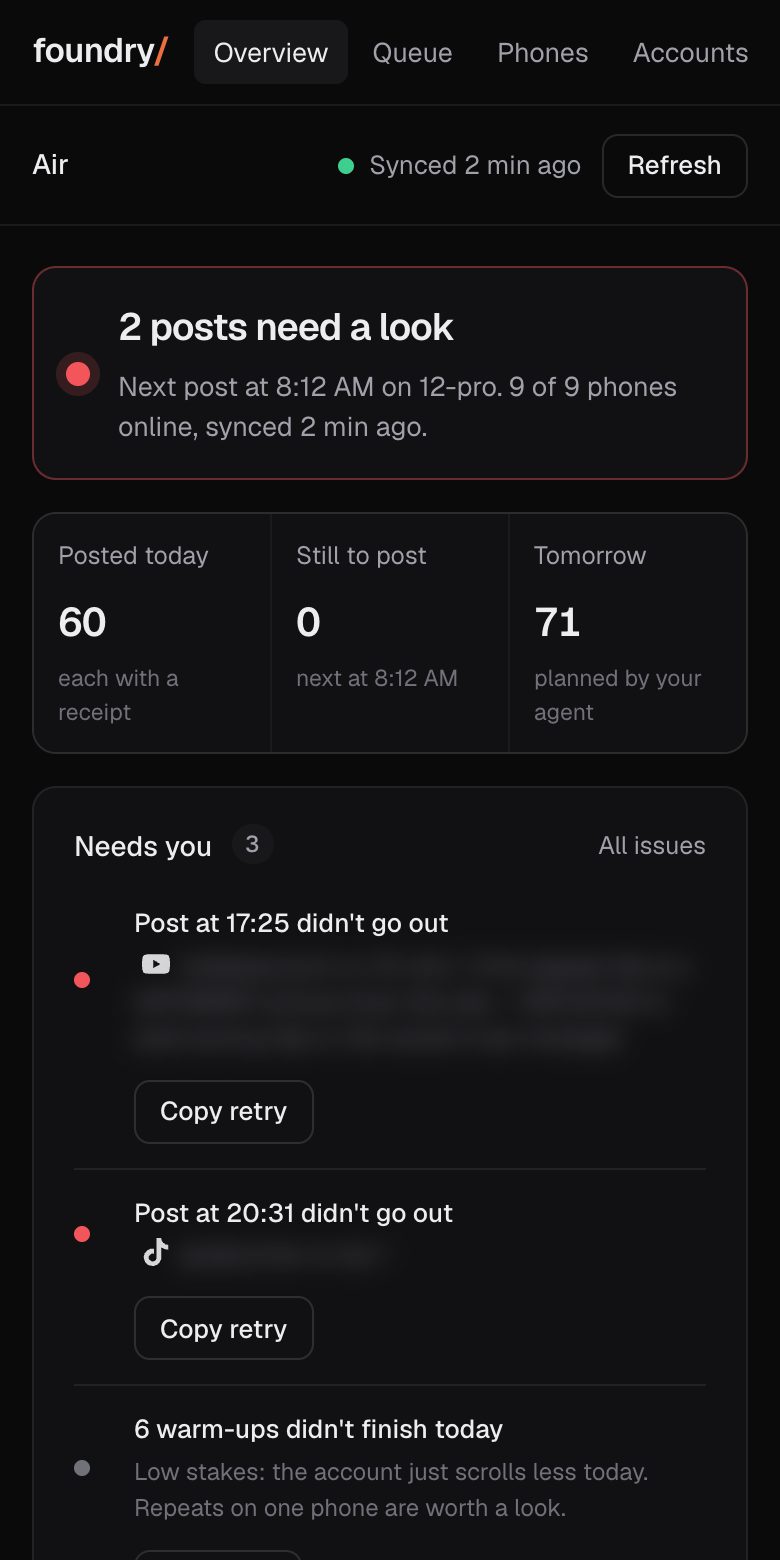
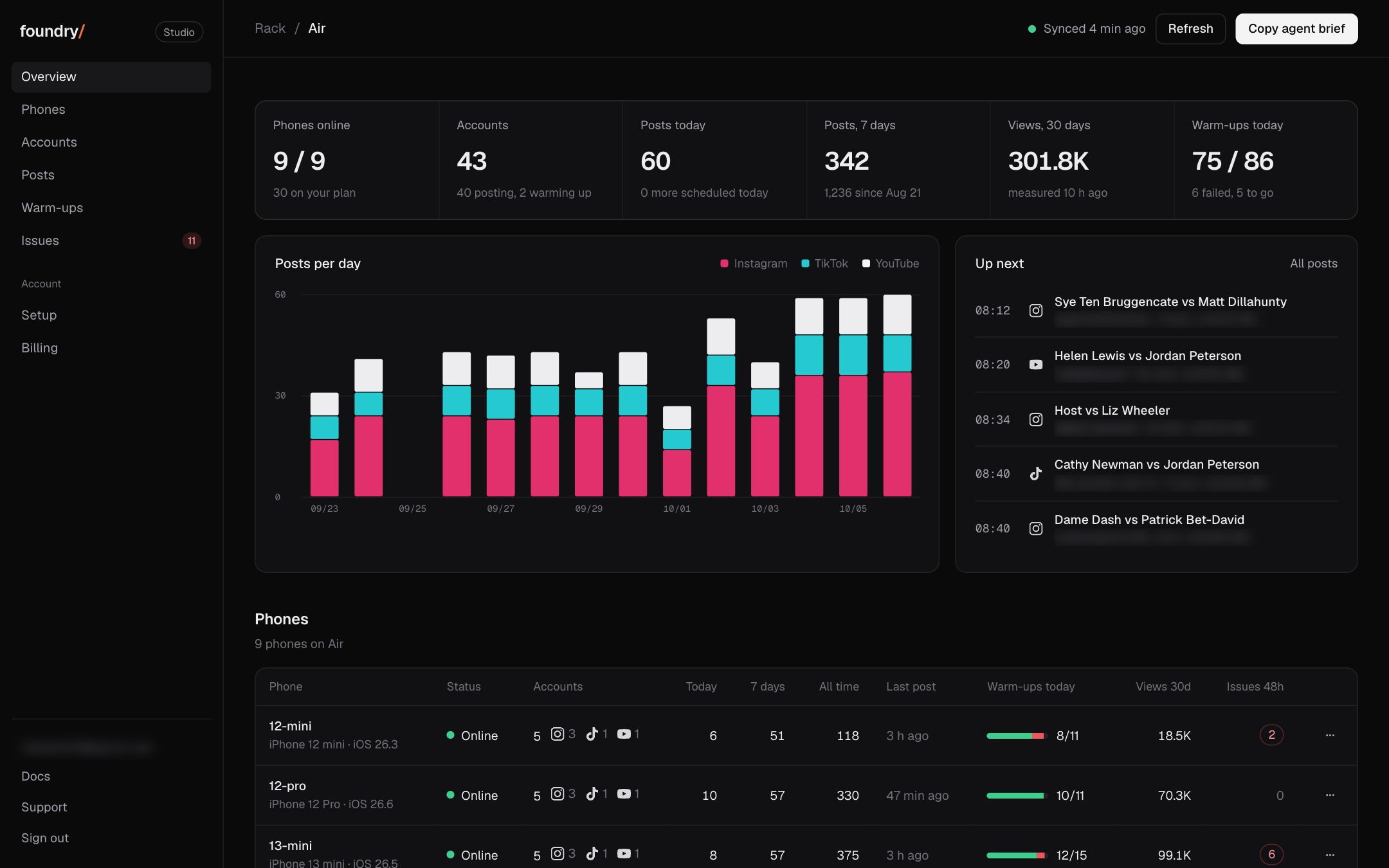
The Overview went back to the layout from Sep 30 (six numbers, the posts chart beside Up next, the phones table) and its top line now names the next post, a late post or a phone that is offline.
Queue: plain statuses, and one banner for posts on hold
The queue reads in plain words: On hold and Unverified instead of the runner's own labels, clock times, no internal clip ids. One banner counts the posts on hold and offers the fix to copy.
Where to click Dashboard, Queue, then Still to post. Open it
BeforeAfter
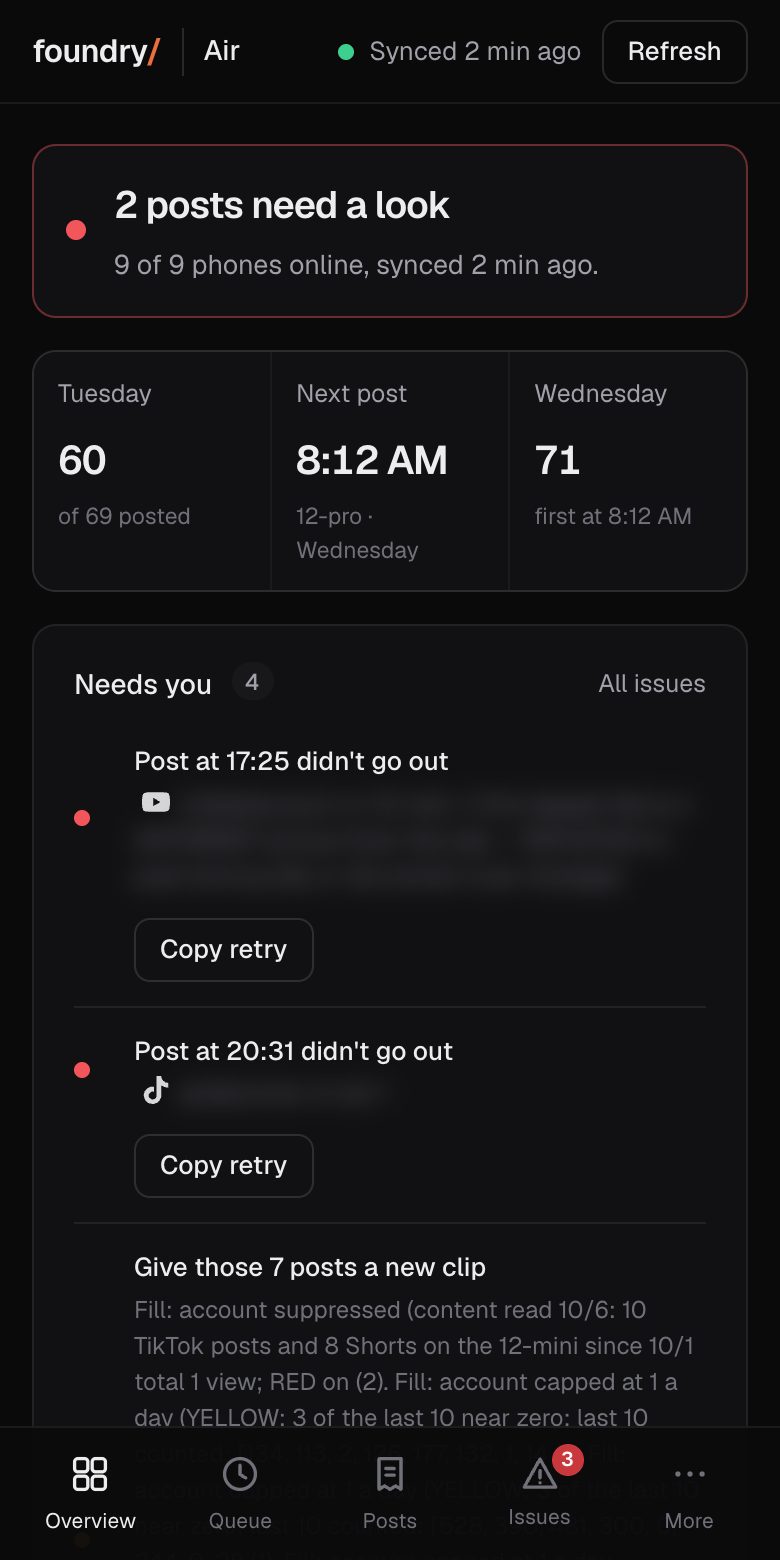
On a phone: a tab bar and a More sheet
On a phone the dashboard has a bar at the bottom (Overview, Queue, Posts, Issues, More). More opens the rest. Before, every section was one long page under a row of links.
Where to click Dashboard on a phone, the bar at the bottom. Open it
BeforeAfter
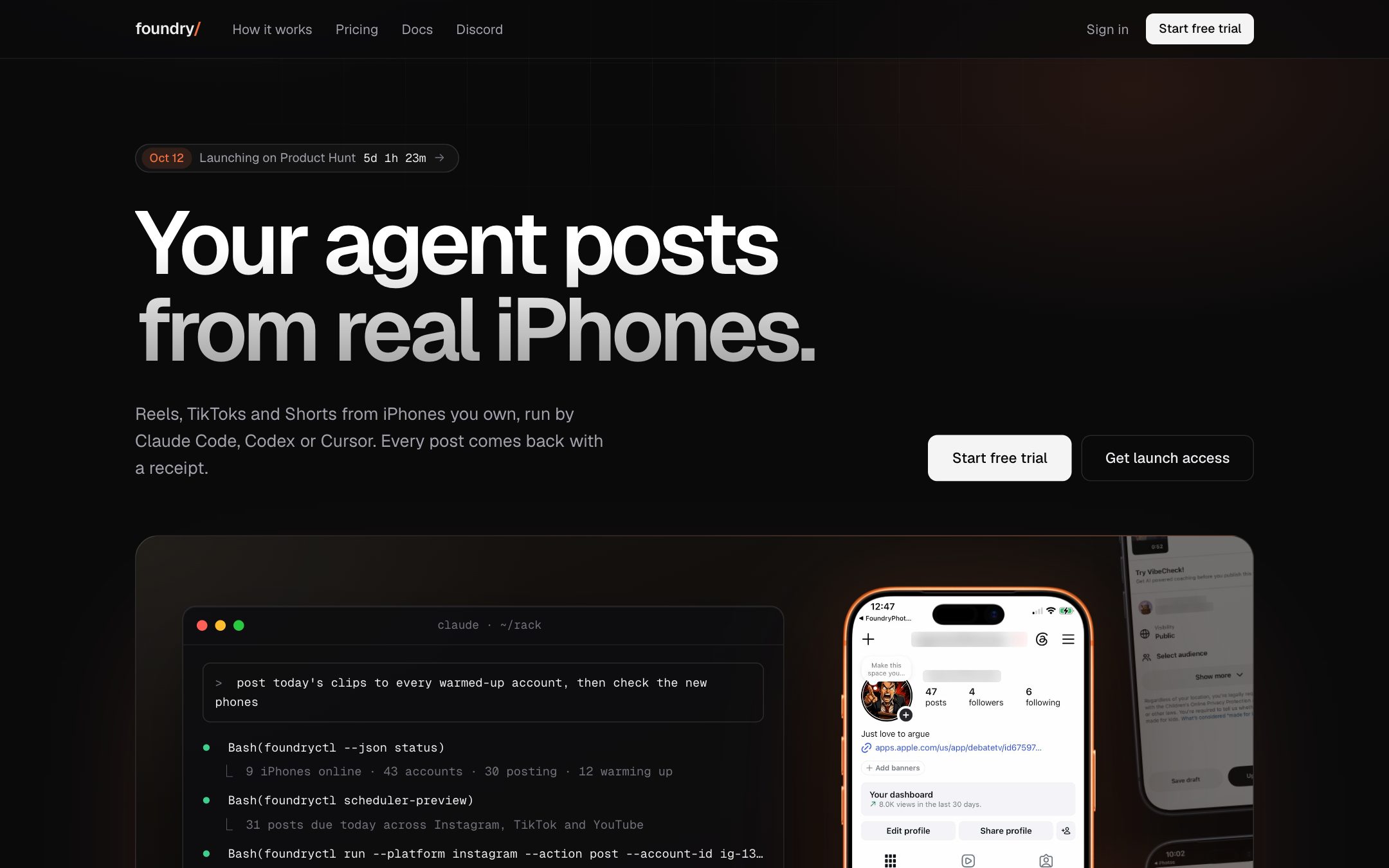
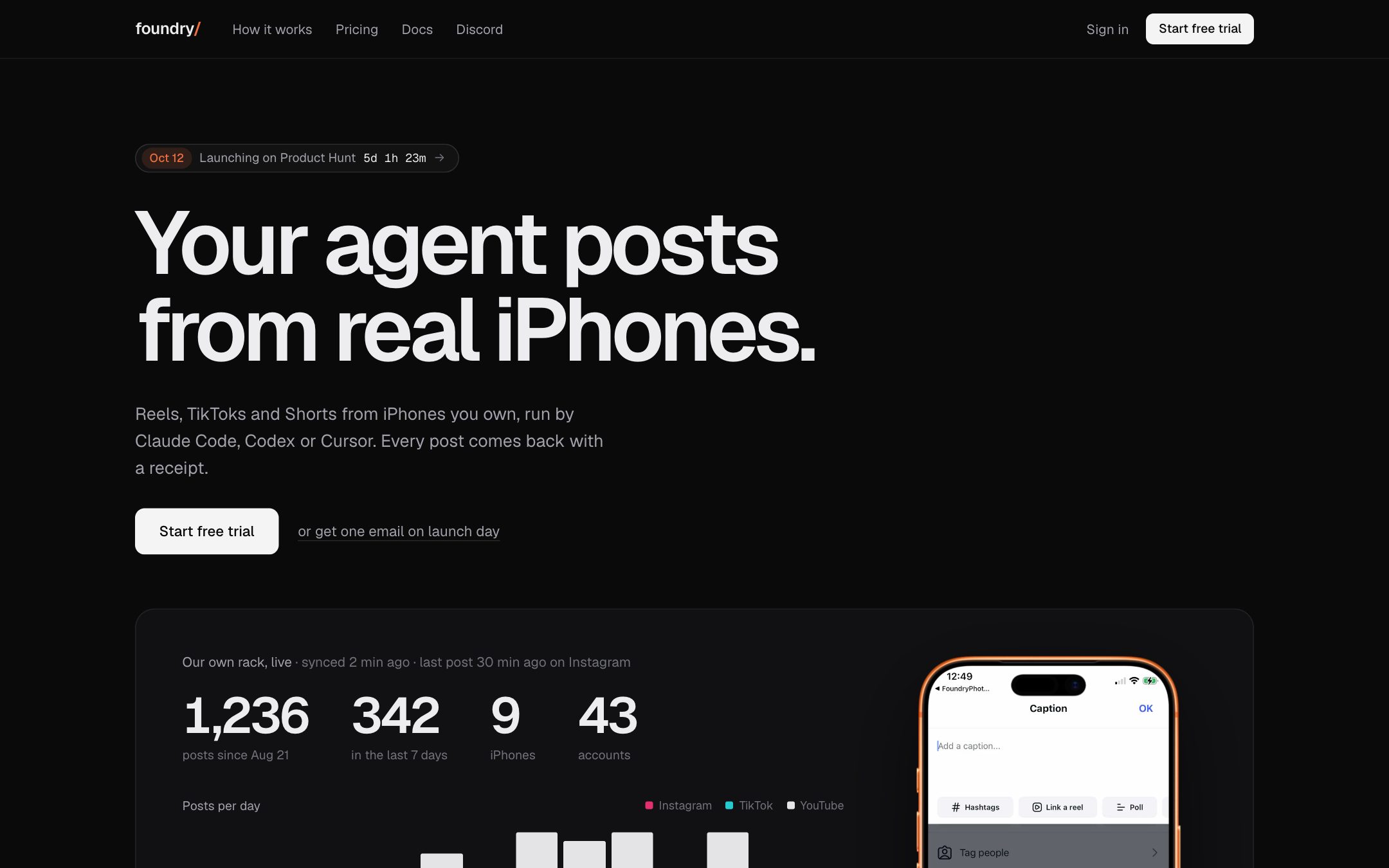
Homepage: a real post going out, beside the rack's live numbers
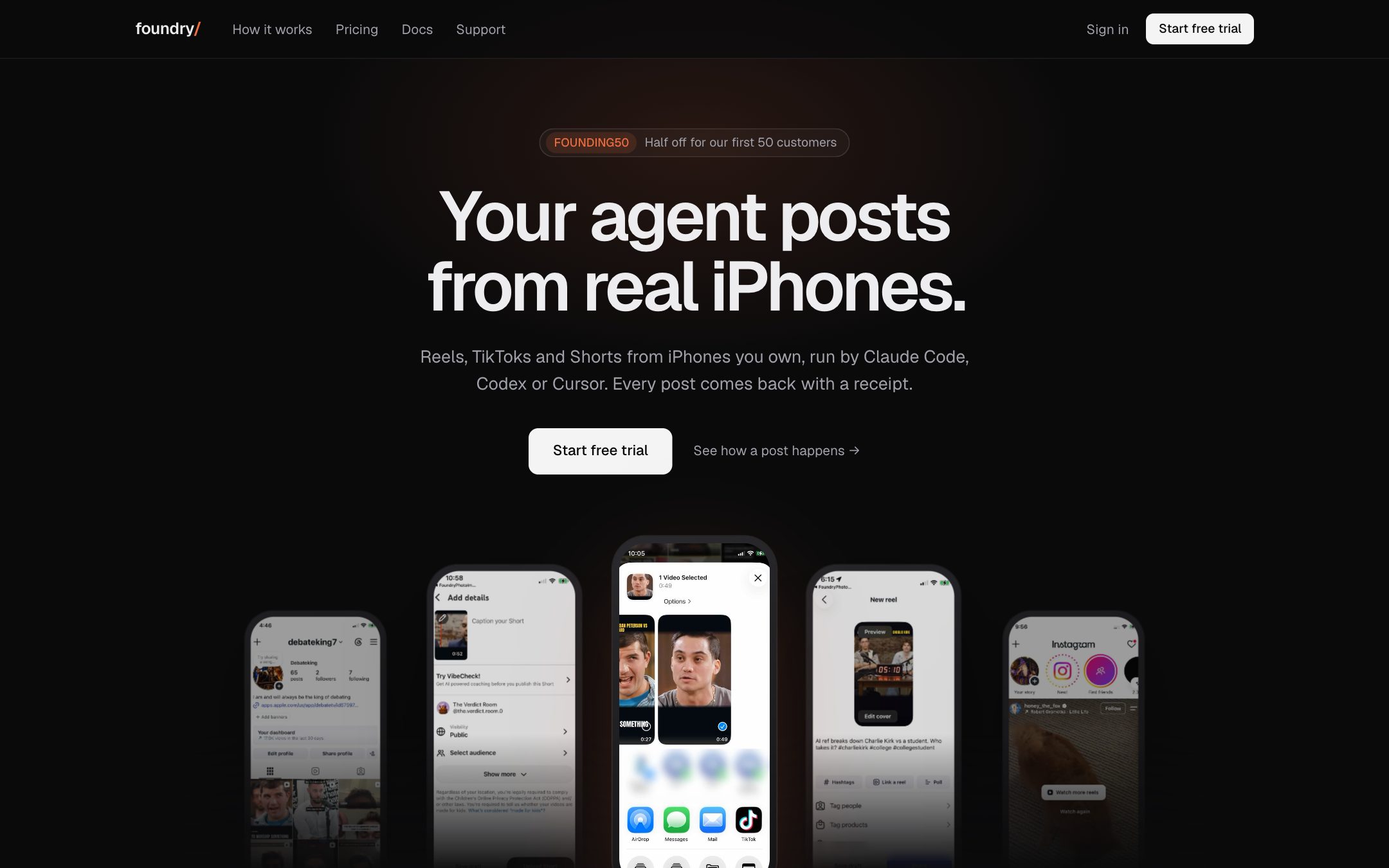
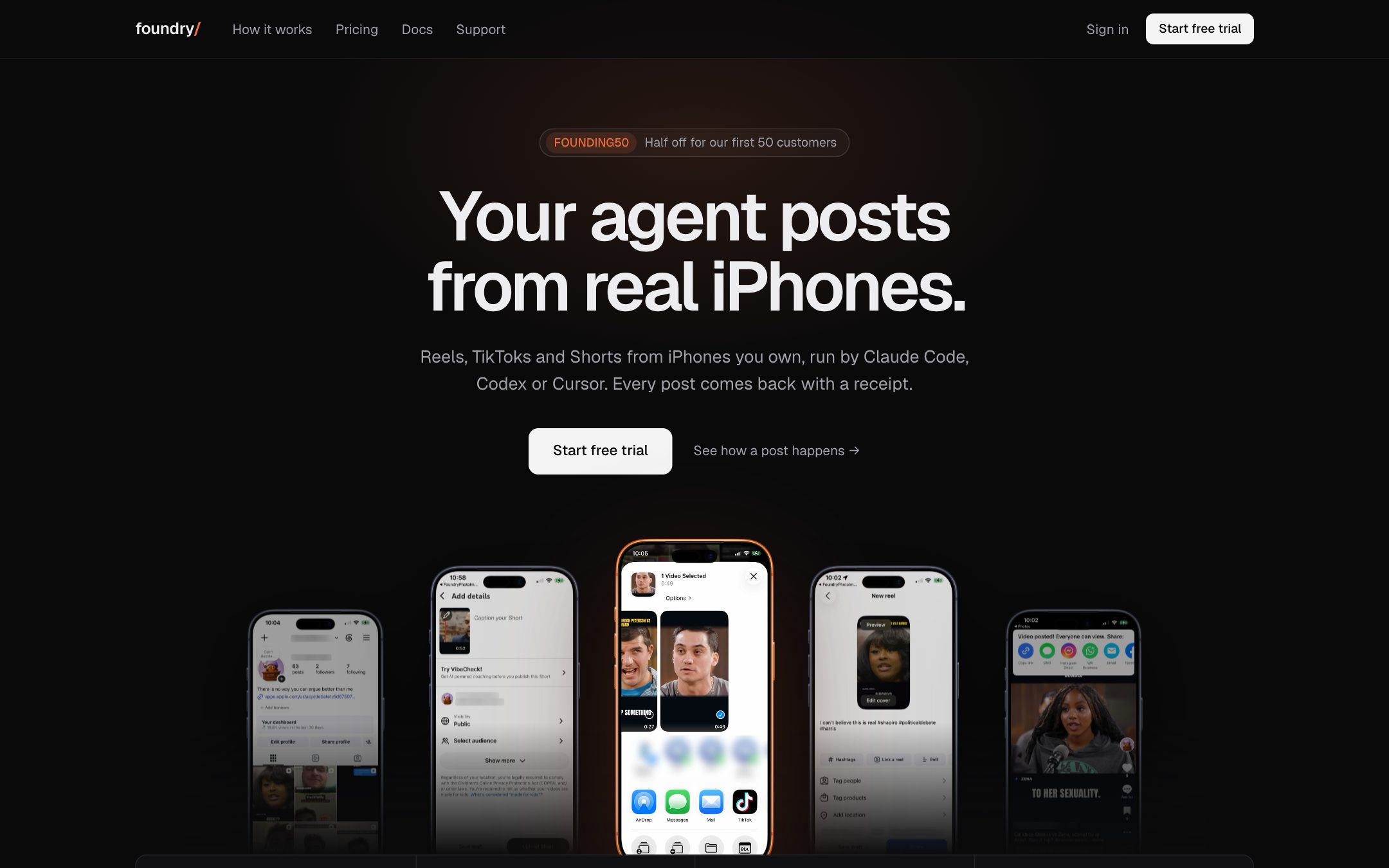
The top of the homepage is a real recording of one of our phones posting, next to our rack's live counts and 14 day chart. The scripted terminal animation is gone.
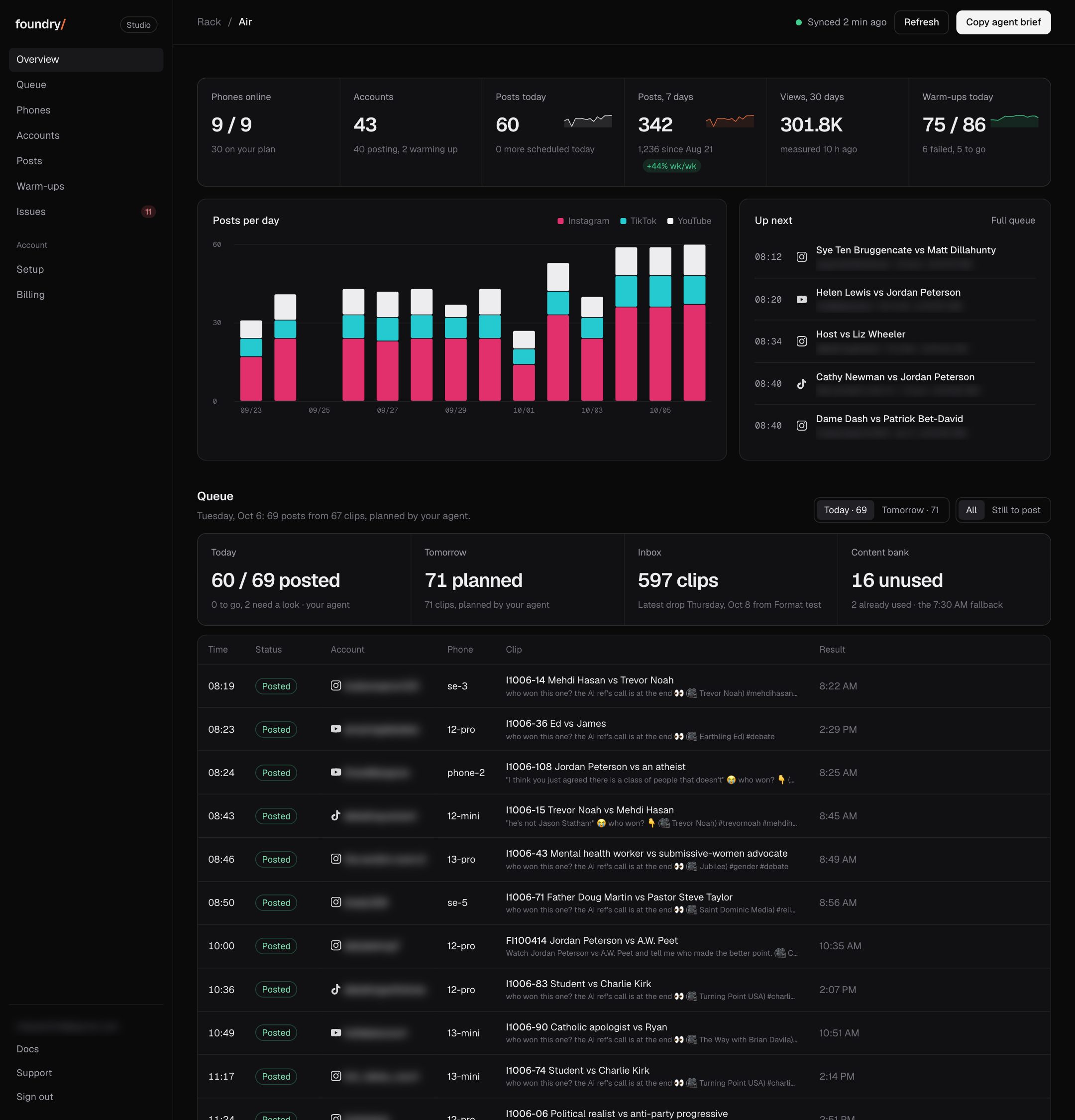
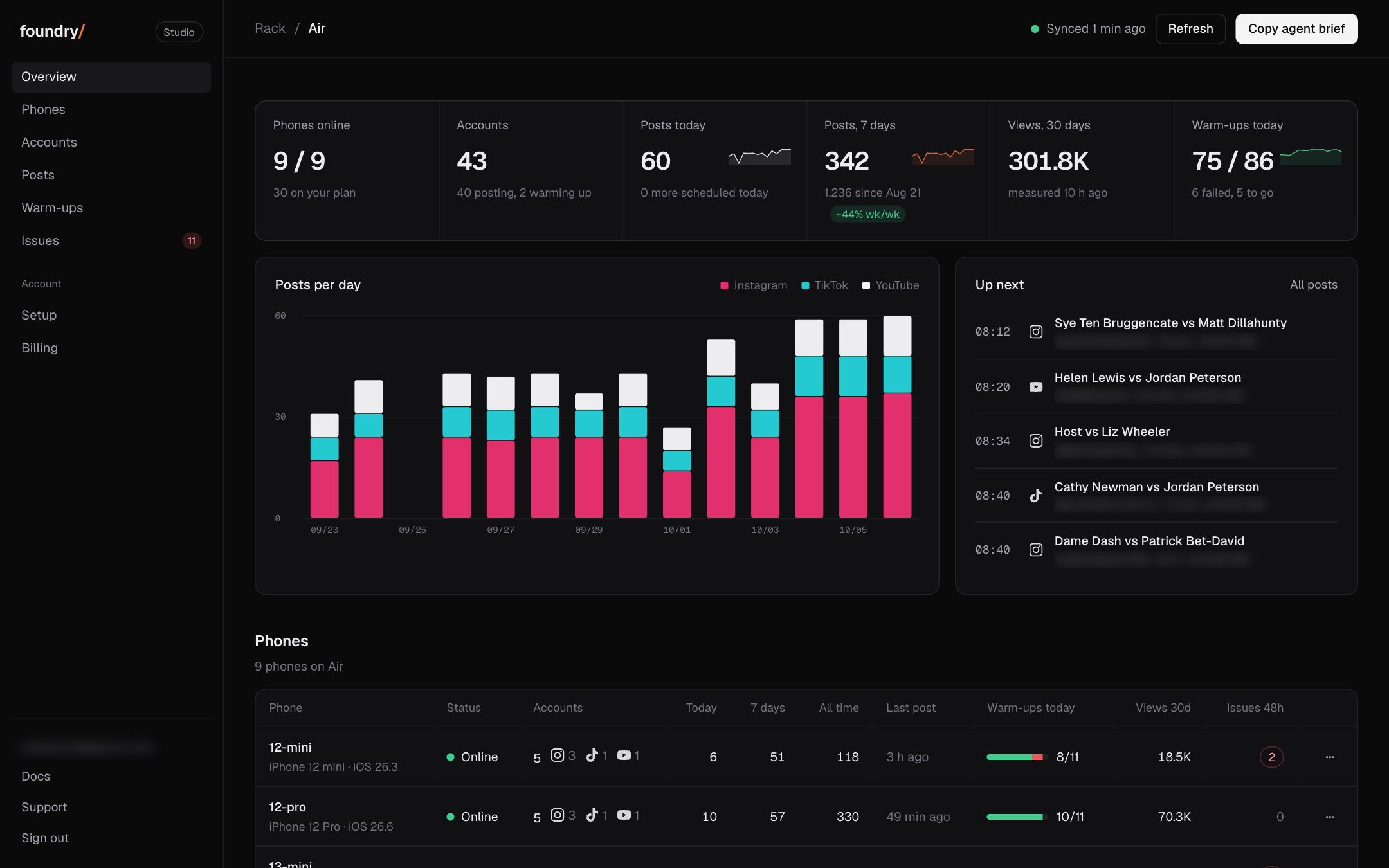
Each tab is its own view. Overview answers three things on one screen: what posted, what failed, what is next. Before, the dashboard was every section stacked on one page.
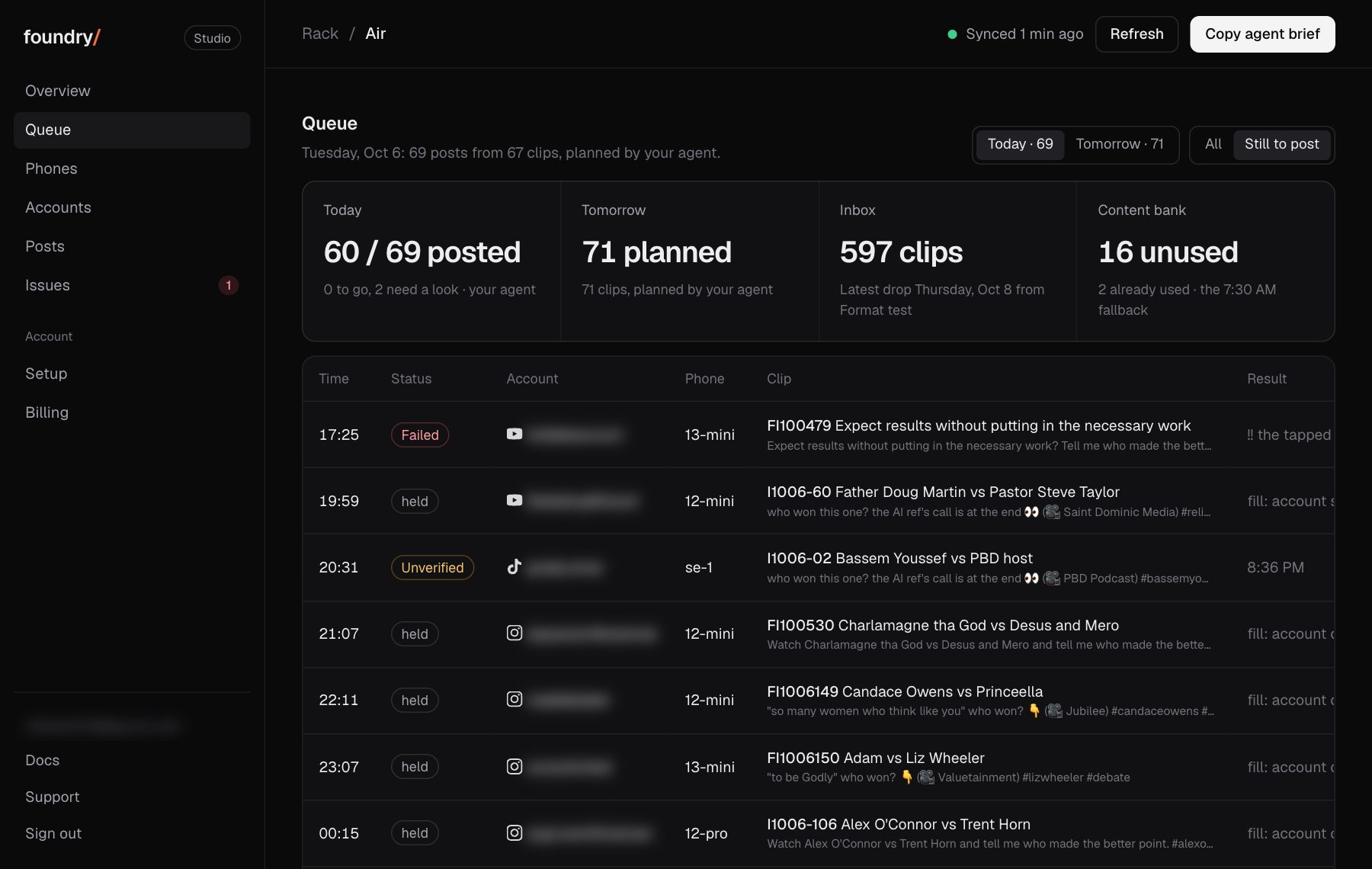
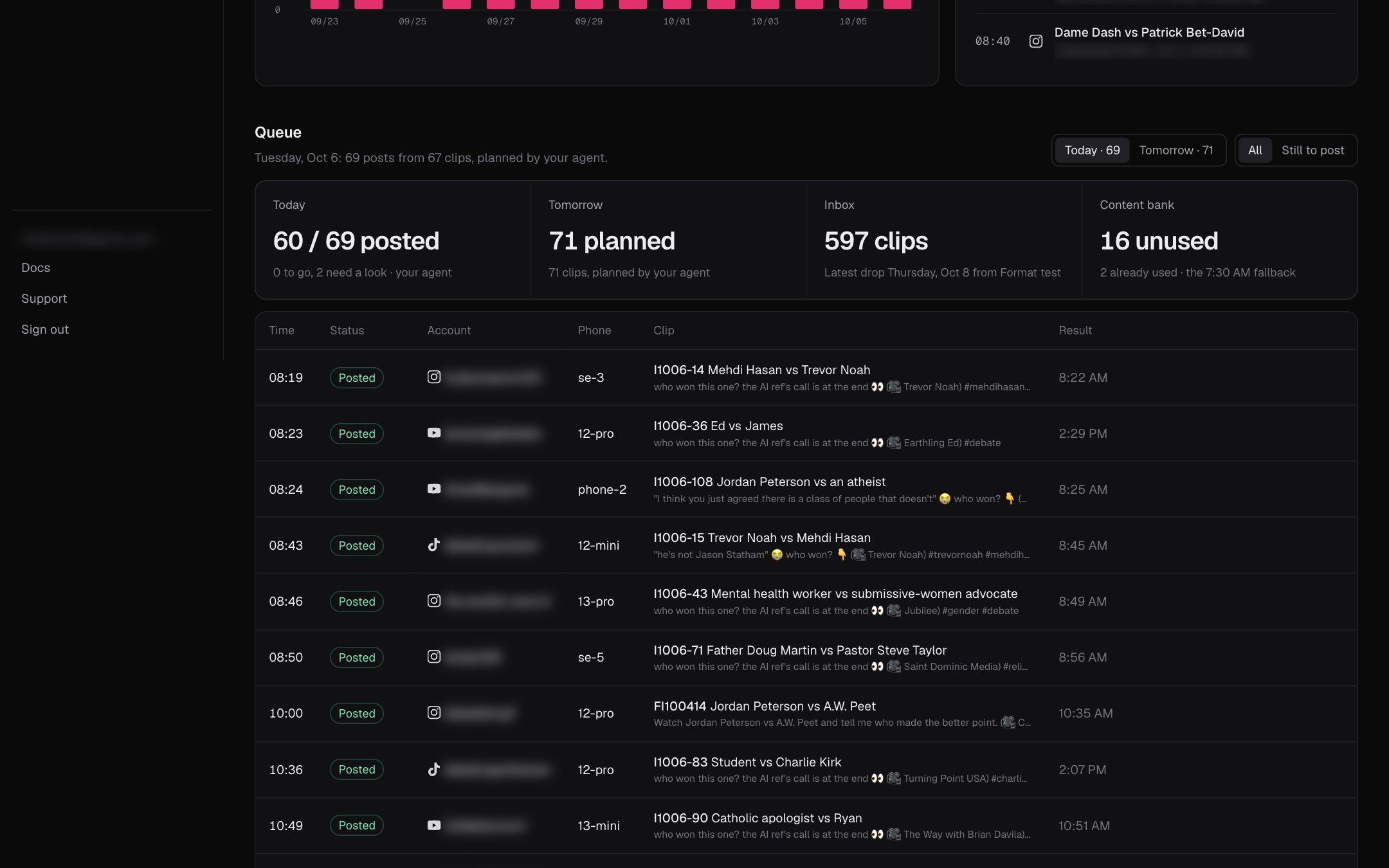
A new Queue tab lists each post of today's and tomorrow's plan with its time, account, phone, clip and status, and shows the clips waiting in the inbox and the content bank.
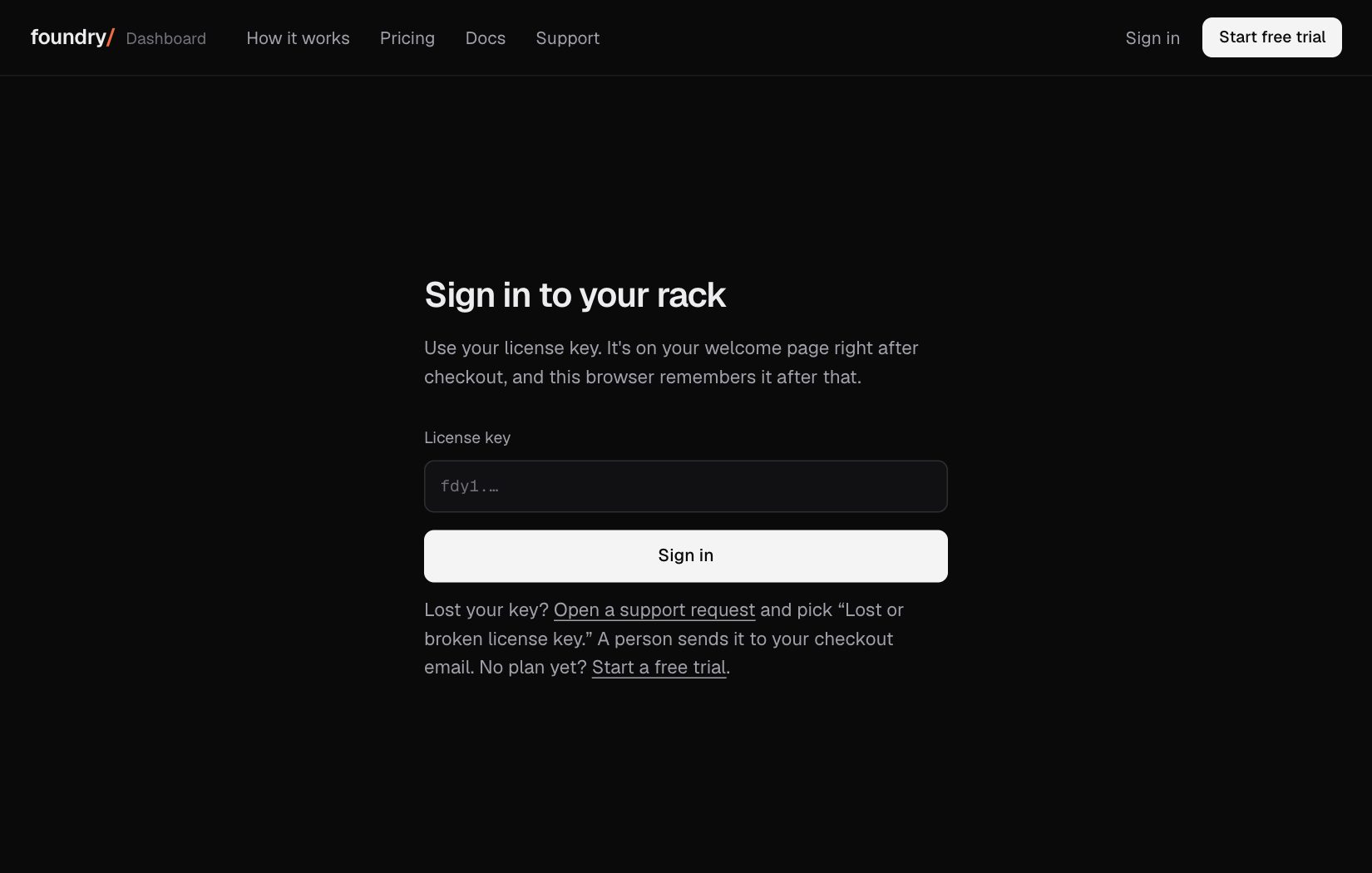
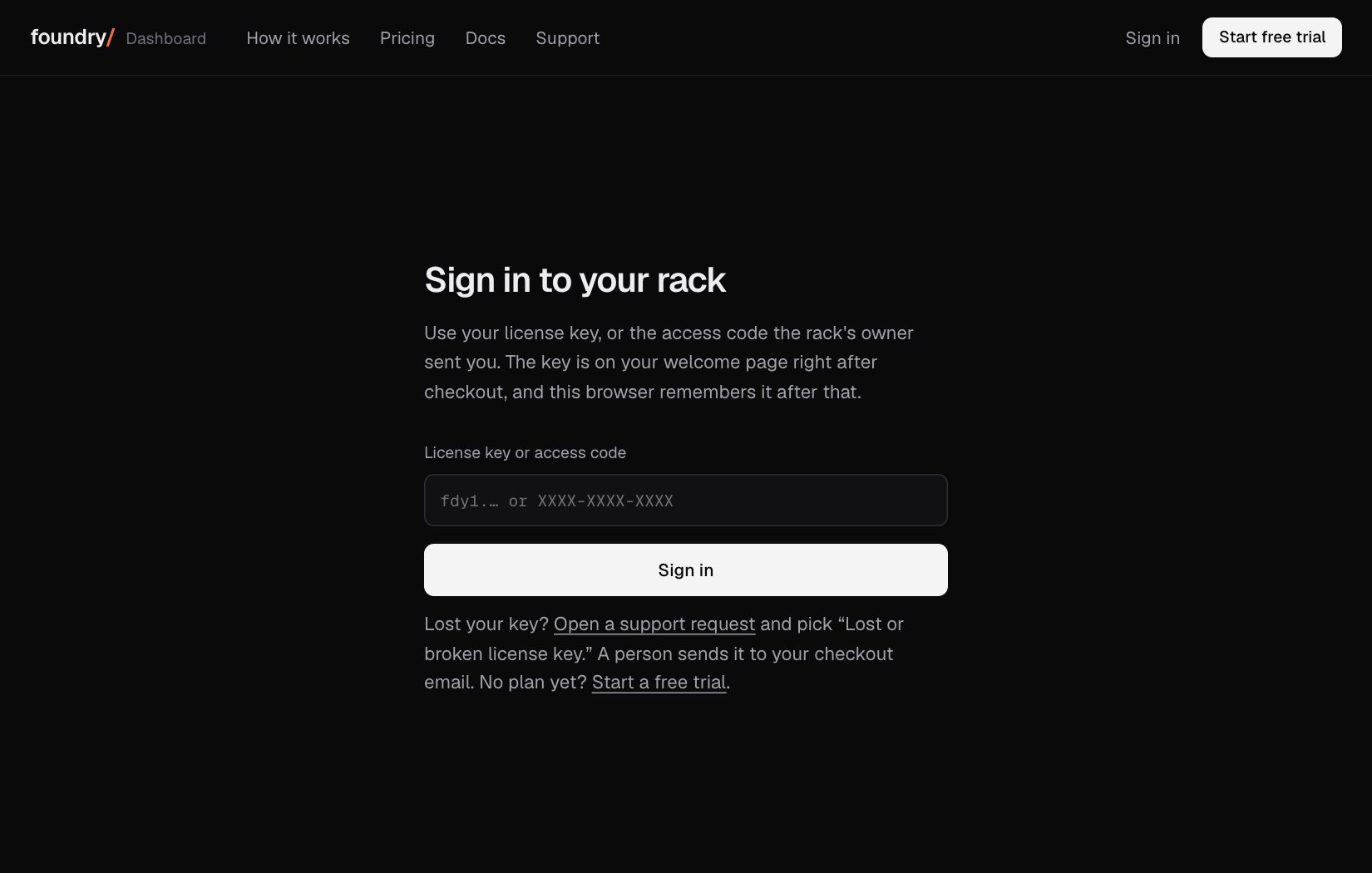
The sign in box takes a short access code as well as the license key, so a teammate can open the rack without ever being sent the key. A code can be revoked on its own.
The dashboard: your phones, accounts, posts and issues
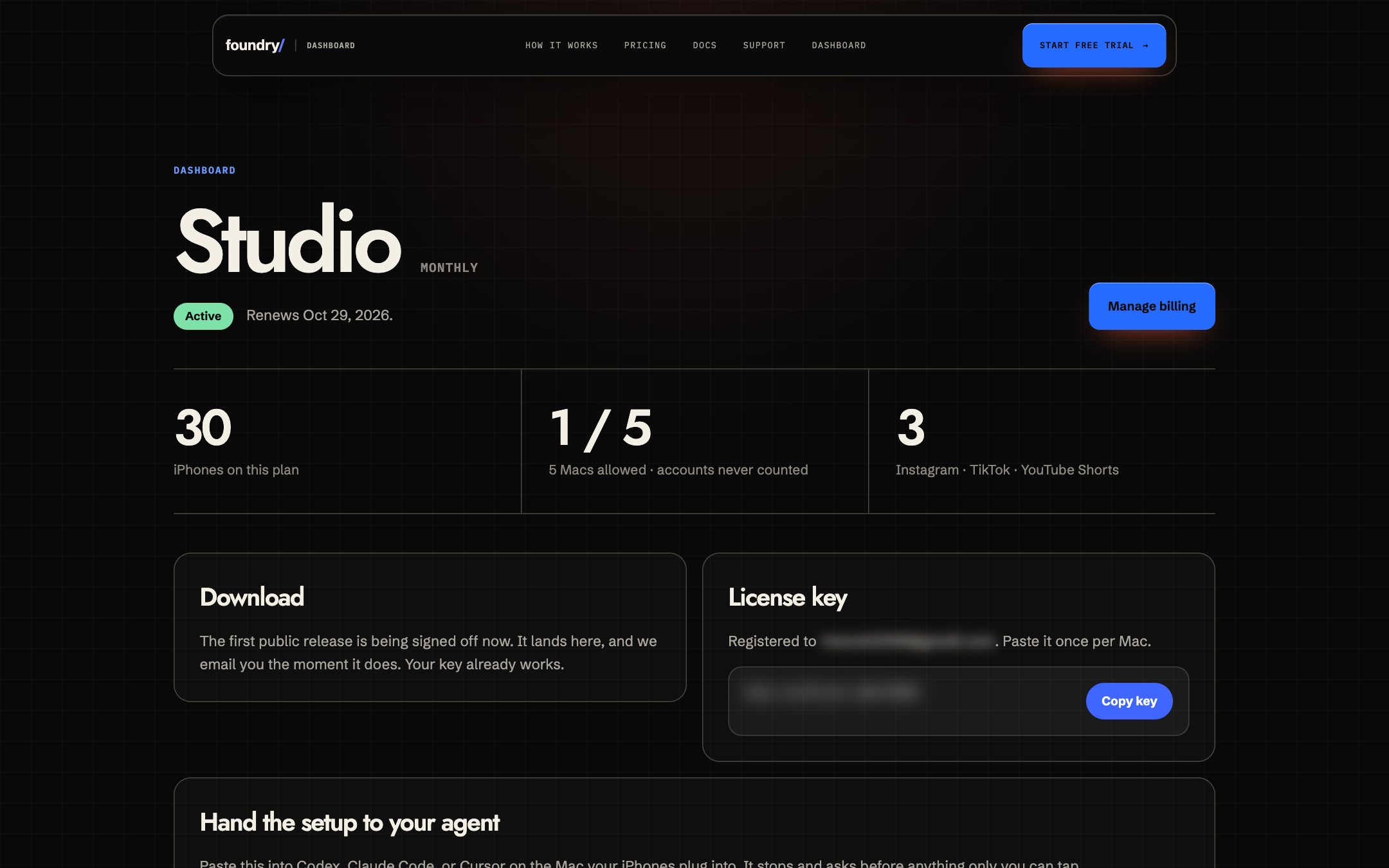
The account page became a fleet dashboard: phones online, accounts per phone and their state, posts today and by day, what is up next, warm-ups and the issues of the last 48 hours. Before, it showed the plan and the key.
Where to click Sign in, then the dashboard. Open it